





How to Use the Ninja Drive Widget Builder
The Widget Builder makes it easy to create and embed Google Drive-powered features anywhere on your WordPress site using shortcodes. No technical expertise needed — pick a widget, configure it, and drop it into any page, post, or widget area.
Available Widgets
Ninja Drive includes the following widgets, each designed for a specific use case:
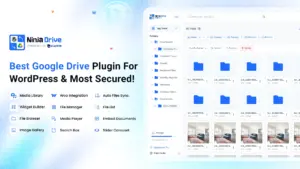
- File Browser — Browse and manage Google Drive files directly from your WordPress site.
- Gallery — Display Google Drive images in a clean, organized gallery format.
- File Uploader — Let visitors upload files to Google Drive directly from your website.
- Media Player — Play audio and video stored in Google Drive without leaving your site.
- Search Box — Search through Google Drive files instantly.
- Embed Documents — Embed Google Drive documents for easy inline viewing.
- File List — Display Google Drive files with view and download options.
- Slider Carousel — Showcase images and documents in an engaging slider format.
- Review & Approve — Let users review, select, and confirm file choices. (Coming Soon)
How to Use the Ninja Drive Widget Builder
- Go to Ninja Drive in your WordPress dashboard.
- Click on Widget Builder.
- Click Add New Widget.
- Choose the widget type you want to create.
- Configure the settings to fit your needs.
- Copy the generated shortcode and paste it into any page, post, or widget.
Tip: Each widget generates a unique shortcode. You can create multiple instances of the same widget type with different settings and use them across different pages independently.
With the Widget Builder, you have full control over how Google Drive integrates into your site — making file management, media display, and document embedding simple and flexible.

 Join Community