




How to Add a File Browser Widget Using Ninja Drive
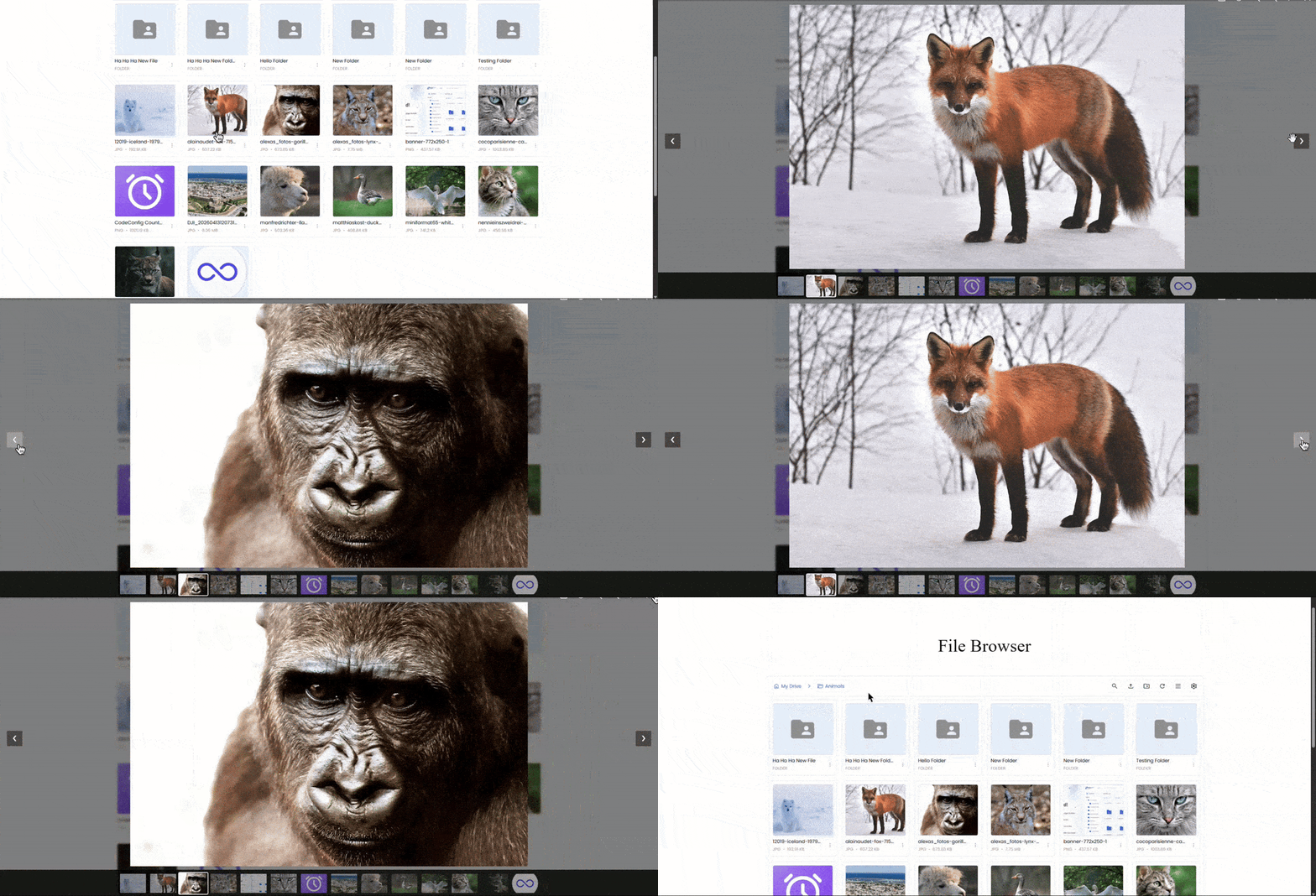
The File Browser widget lets your visitors browse, search, download, and upload files directly from your Google Drive — embedded anywhere on your WordPress site with a simple shortcode. No coding required.
Before You Begin
Make sure you have completed the following before creating a File Browser widget:
- Ninja Drive plugin is installed and activated — see How to Install and Activate Ninja Drive FREE Version
- At least one Google account is connected — see How to Link Your Google App with the Ninja Drive Plugin
Step 1: Open the Widget Builder
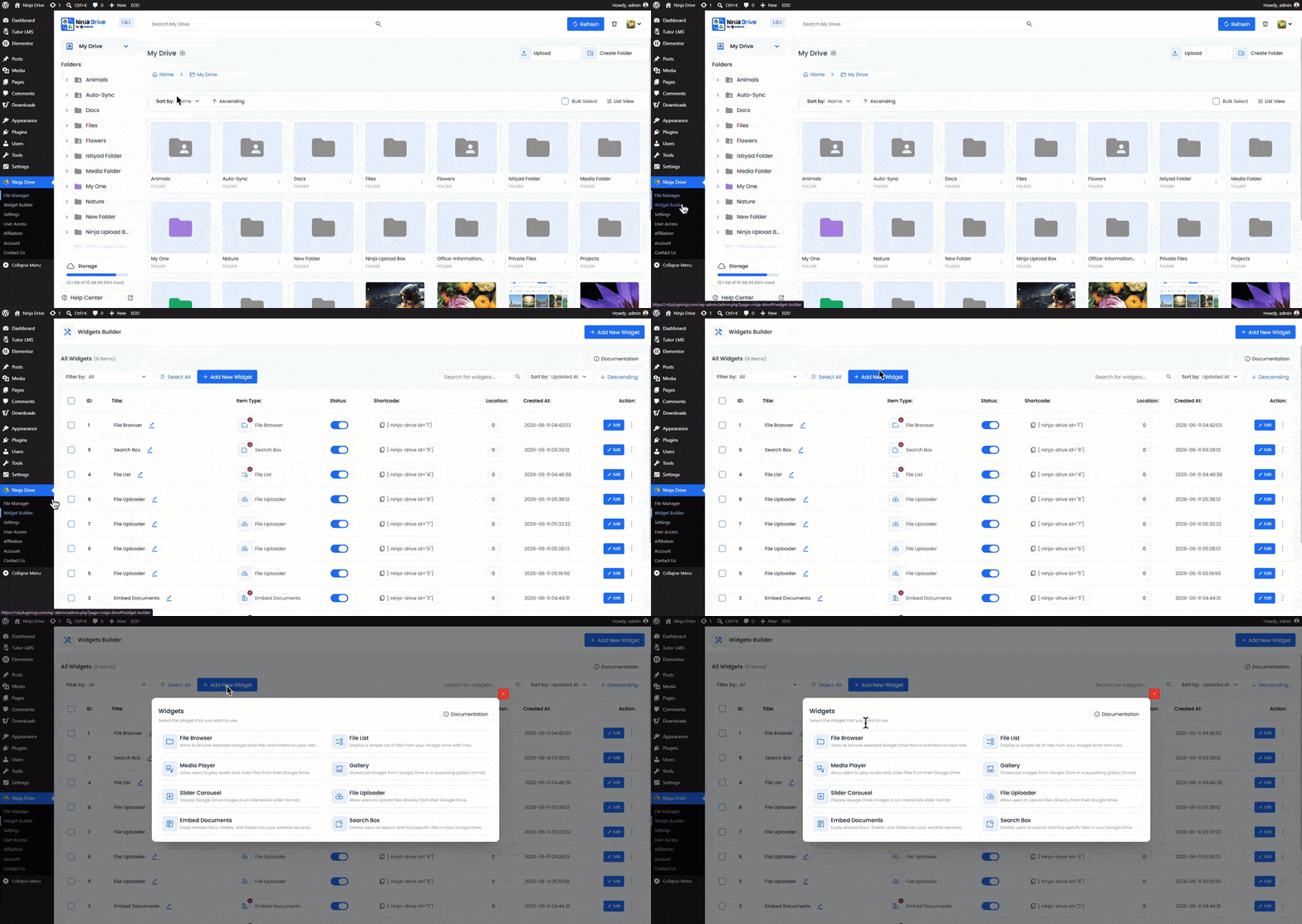
- Go to your WordPress dashboard and click Ninja Drive in the left sidebar. Then click Widget Builder.
- On the Widget Builder page, click the Add New Widget button at the top right.
Step 2: Select File Browser Widget
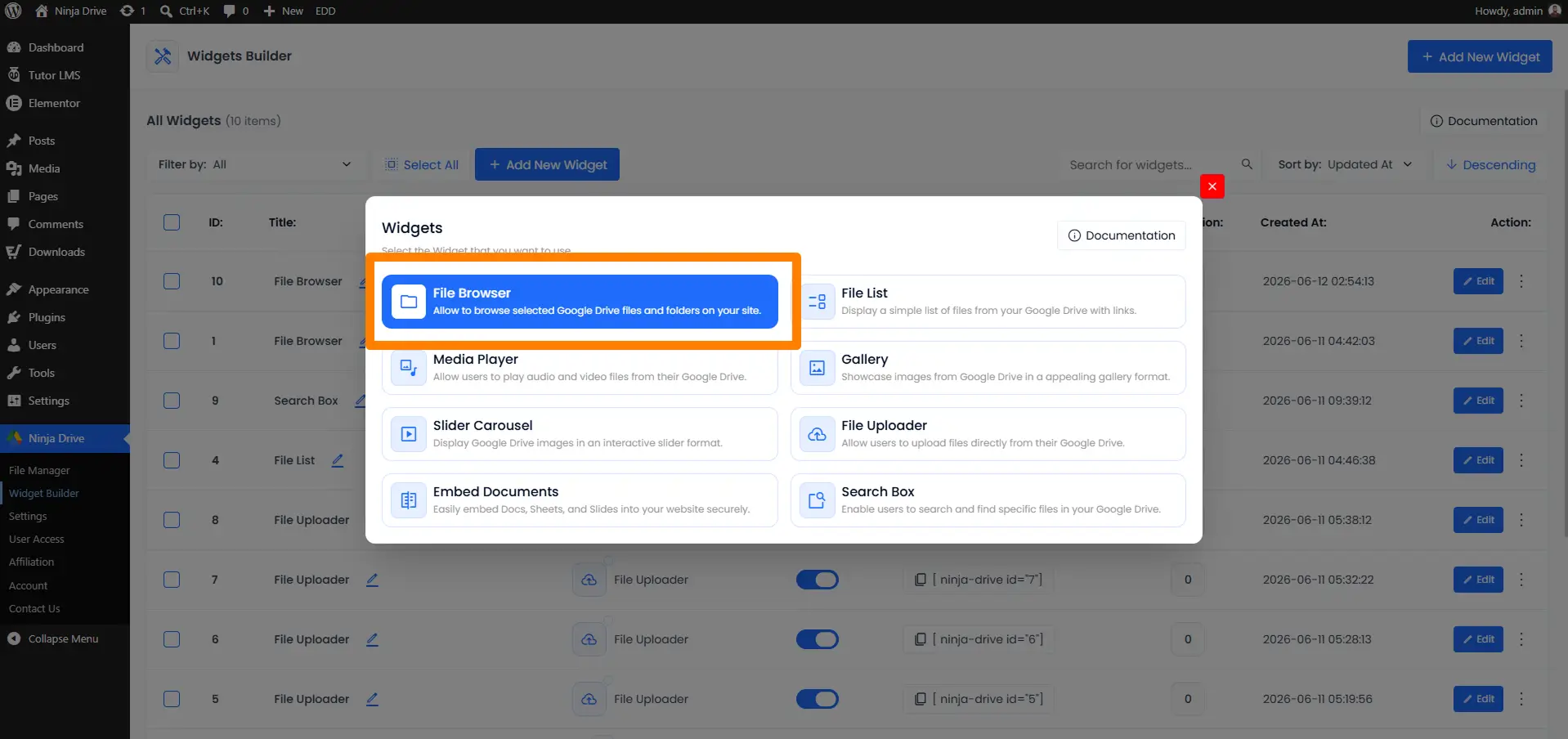
A widget type selector will appear. Choose File Browser from the list of available widget types.
Step 3: Select Source From Google Drive
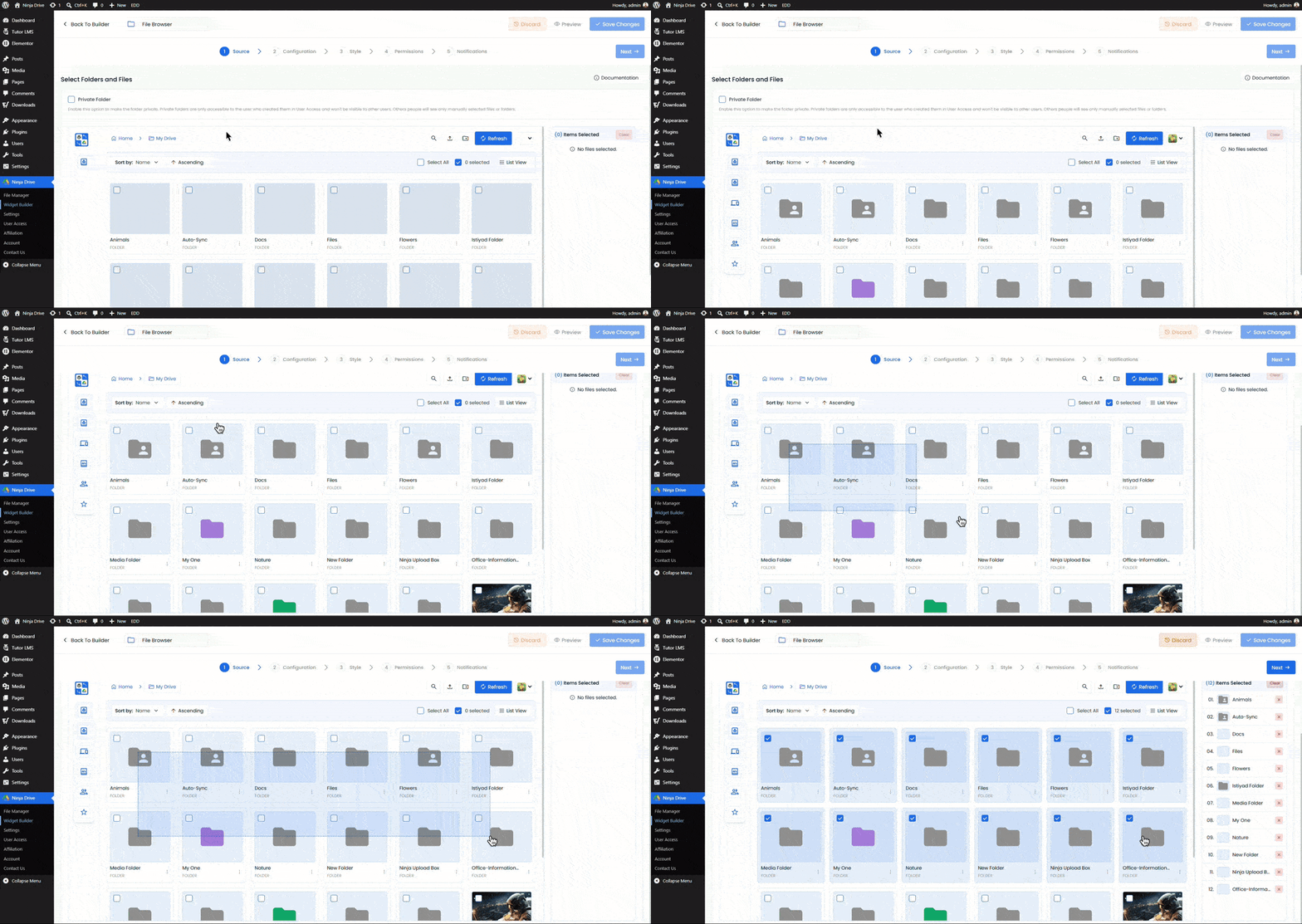
After selecting File Browser, you will land in the source tab. From here, select the files that you want to show.
Step 3: Configure the File Browser Settings
After selecting sources, click on the next button, and then the widget configuration panel opens. Fill in the settings:
Configuration Tab
- Enable: Secure Video Playback.
- Automatic File Fetching: Turn on this option to fetch new files automatically
- Password Protection: Set any password for the widget.
- Filter Your File: You can filter all your selected files, which will show or which will not.
Style Tab
- Default View Style: Choose how files and folders are displayed when the widget first loads.
- Header Options: Configure the visibility and appearance of the widget header and navigation elements.
- Layout Height & Width: Set the height & widget width as a percentage of the available container space.
- File Loading Type: Choose how additional files are loaded when users browse content.
Permission Tab
- Create Folders – Allow users to create new folders directly from the file browser interface.
- Upload Files – Enable users to upload files to the connected cloud storage account.
- Preview Files – Allow users to open and preview supported files without downloading them.
- Rename Files & Folders – Give users permission to rename files and folders for better organization.
- Download Files – Allow users to download files directly to their device.
- Copy Files & Folders – Enable users to create copies of files and folders within cloud storage.
- Move Files & Folders – Allow users to move files and folders between directories with ease.
- Share Files – Enable file sharing options and generate shareable links.
- Search Files – Allow users to quickly find files and folders using the built-in search feature.
- Delete Files & Folders – Give users permission to remove files and folders from the connected storage account.
Notification Tab
Notification For: Notifications will be sent whenever users trigger the selected actions below.
Step 4: Save and Copy the Shortcode
Click Save to create the widget. Ninja Drive will generate a unique shortcode for this widget — something like:
[ninja-drive id="*"]Copy this shortcode. Each widget has its own unique shortcode, so you can create multiple File Browser widgets with different settings and use them independently on different pages.
Step 5: Embed the File Browser on a Page or Post
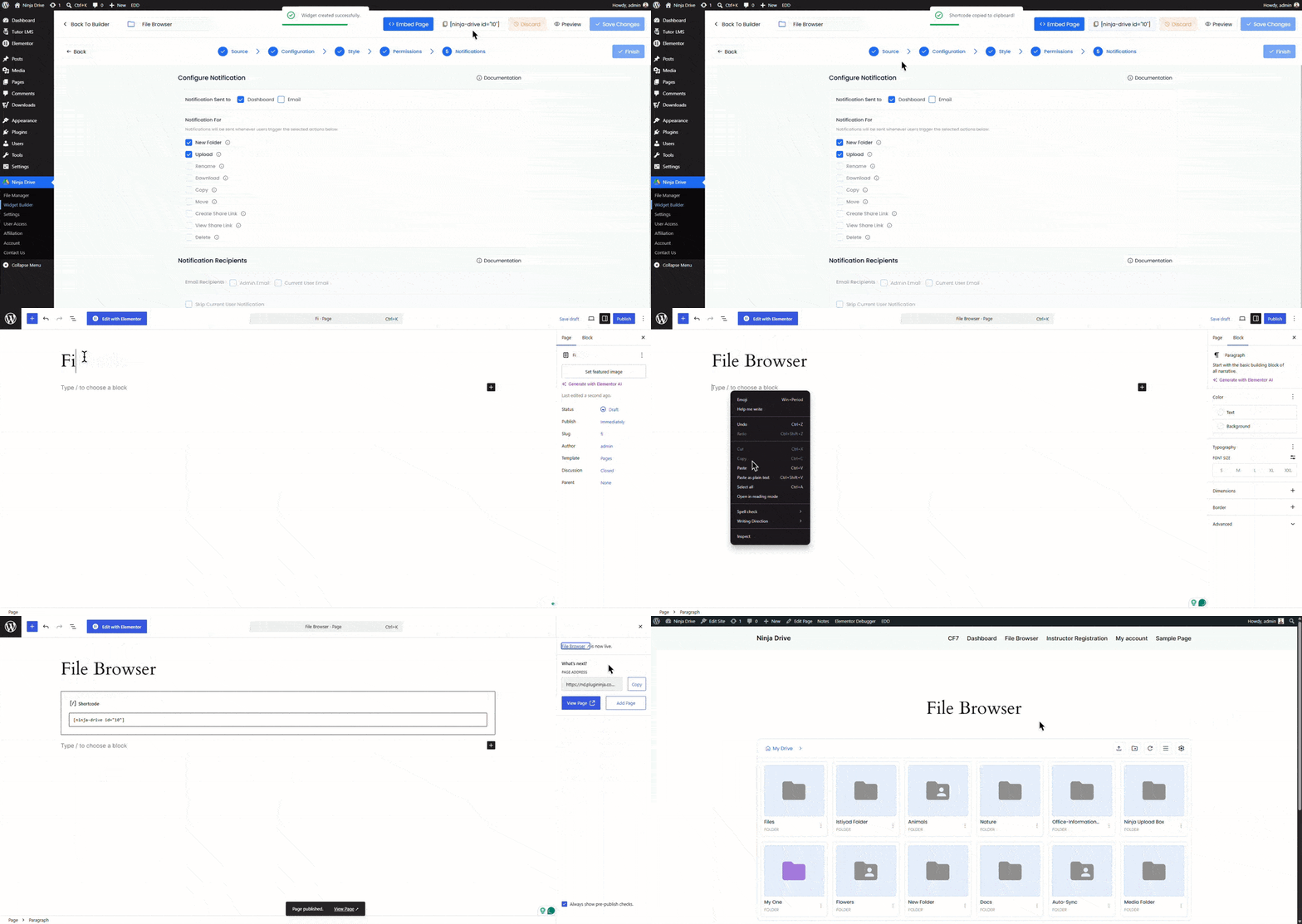
Paste the shortcode into any page, post, or widget area where you want the File Browser to appear.
In the Gutenberg Block Editor
Click the + block inserter, search for Shortcode, add the block, and paste your shortcode inside it.
In the Classic Editor
Switch to the Text tab and paste the shortcode directly in your content where you want the File Browser to appear.
In Elementor
Add a Shortcode widget to your Elementor layout and paste the shortcode inside it.
Result
Once the page is published or previewed, visitors will see a fully functional File Browser powered by your Google Drive. They can navigate folders, search files, download documents, and upload new files (if you enabled it) — all without leaving your WordPress site.

 Join Community