




How to Use Ninja Drive in Elementor?
Ninja Drive comes with easy Elementor integration, allowing you to display Google Drive files, folders, galleries, media players, and document viewers directly inside your Elementor layouts. Build powerful cloud-powered pages without writing a single line of code.
Enable Elementor Integration
Before using Ninja Drive widgets inside Elementor, make sure the integration is activated.
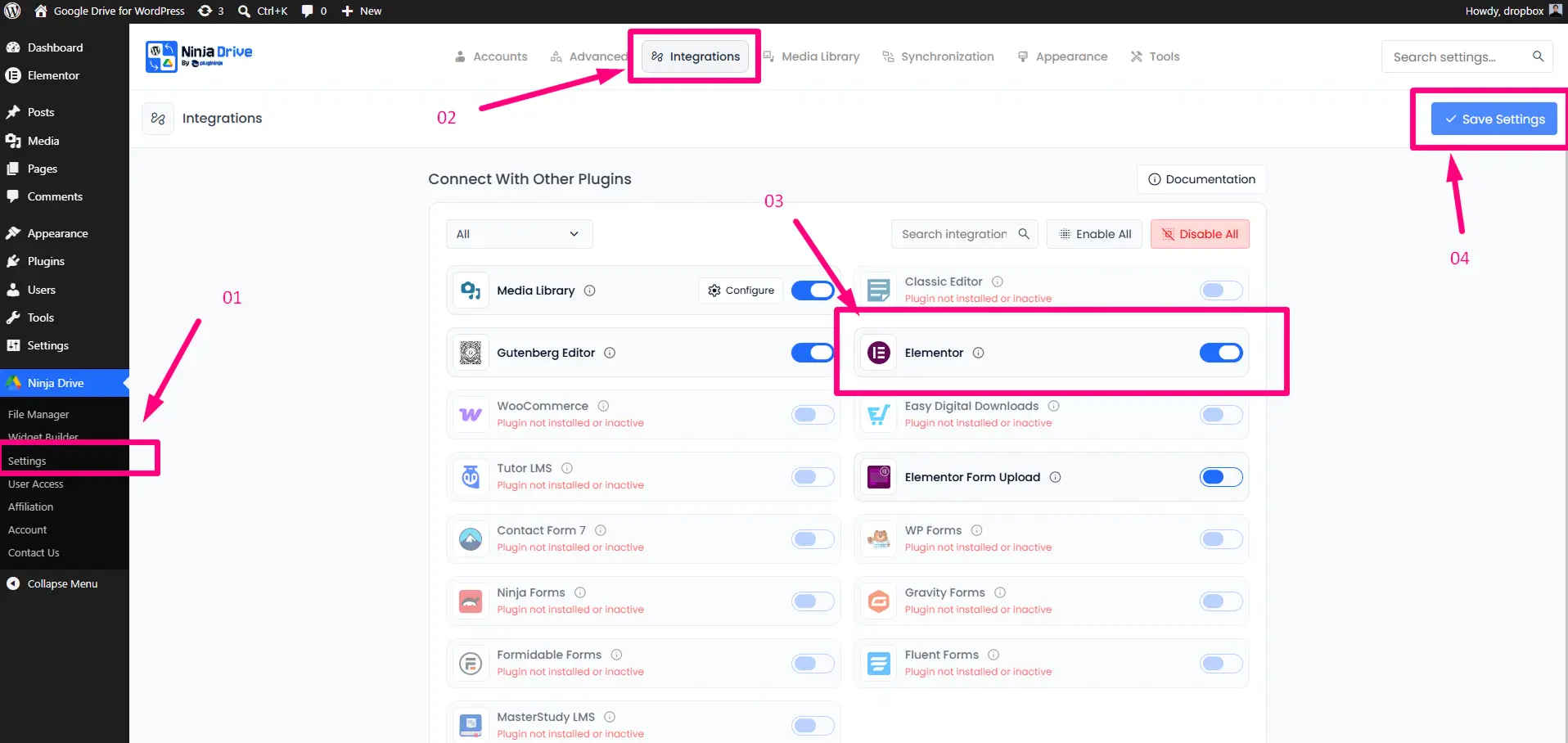
- Open Ninja Drive from your WordPress dashboard.
- Navigate to Settings → Integrations.
- Locate the Elementor Integration option.
- Enable the integration.
- Click Save Changes to apply the settings.
Launch the Elementor Editor
Once Elementor support is enabled, you’re ready to start building pages with Ninja Drive widgets.
- Create a new page or open an existing one.
- Click Edit with Elementor to launch the visual editor.
Add Ninja Drive Widgets
Ninja Drive adds a collection of dedicated Elementor widgets that help you display and manage cloud content directly on your website.
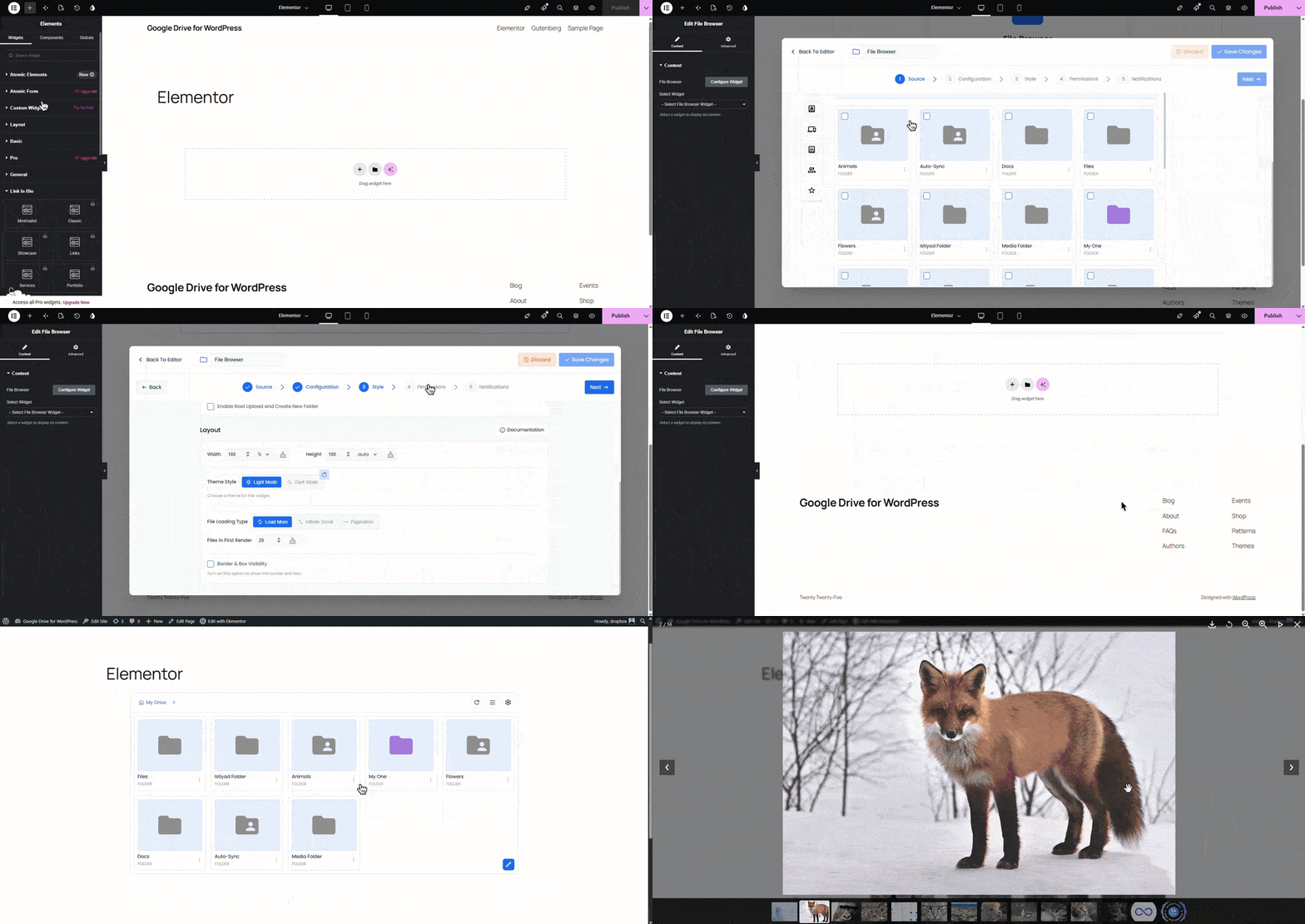
- Open the Widgets panel inside Elementor.
- Search for Ninja Drive or scroll to the Ninja Drive widget category.
- Drag and drop your preferred widget onto the page.
- Select the content type you want to display, such as:
- File Browser
- Media Player
- Image Gallery
- Slider
- Document Viewer
- Search Box
- File List
- Click Configure Module and customize the widget according to your requirements.
Need help creating your first module? Check out the Ninja Drive module creation guide.
Display Existing Modules with Shortcodes
If you’ve already created modules in Ninja Drive, you can quickly add them to Elementor using the shortcode widget.
- Drag the Ninja Drive Shortcode List widget into your desired section.
- Select any previously created module from the dropdown list.
- The selected module will be rendered automatically inside your Elementor layout.
Preview Your Cloud Content
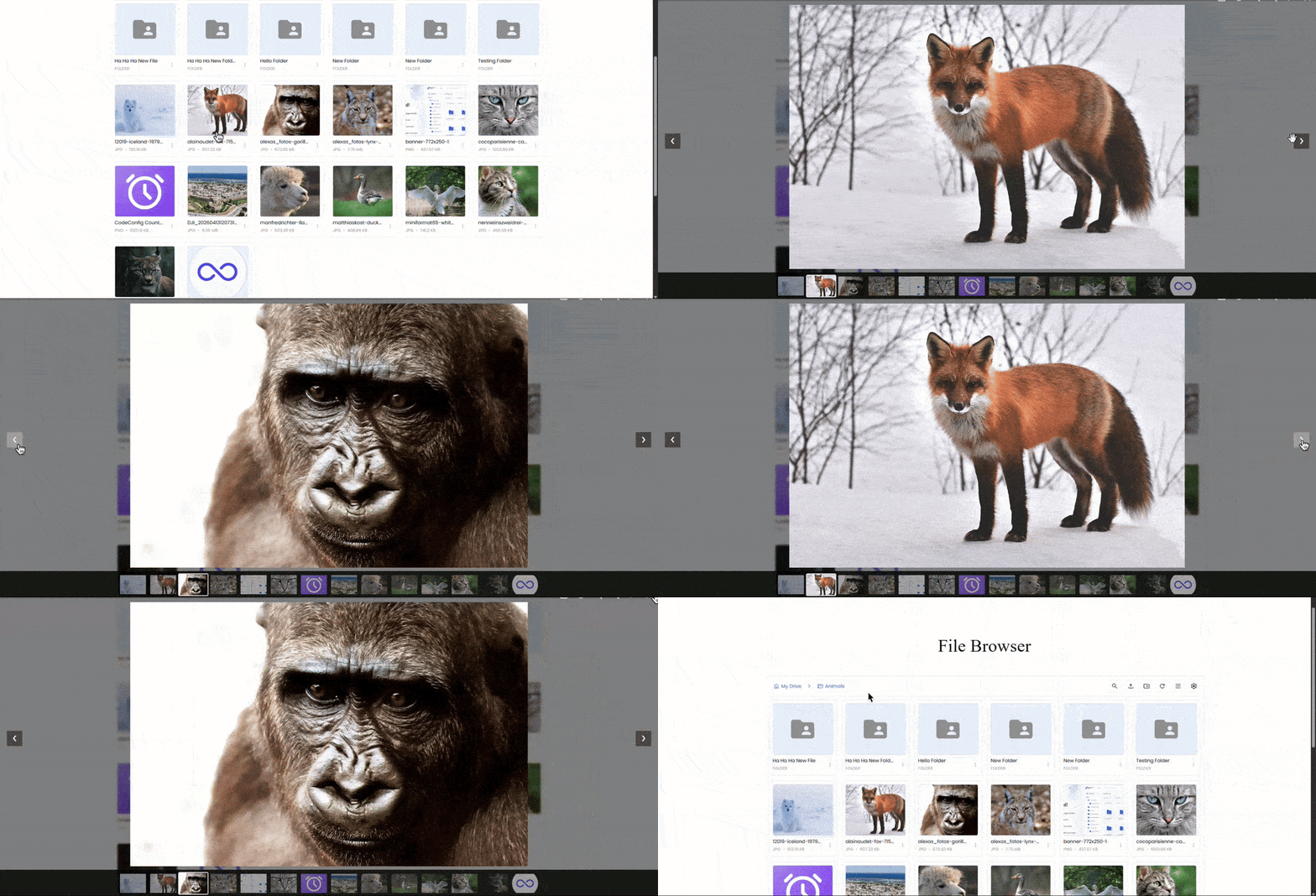
After adding a widget or shortcode, Elementor will instantly display a live preview of your selected module. Whether it’s a file browser, gallery, media player, or document viewer, you can see exactly how it will appear to your visitors before publishing the page.
Ready to manage and display your Google Drive files directly from WordPress? Get Started with Ninja Drive

 Join Community