





How to Import Google Drive Files to the WordPress Media Library?
Ninja Drive makes it easy to transfer files from Google Drive directly into your WordPress Media Library. Once imported, your files can be used anywhere in WordPress, including posts, pages, WooCommerce products, and page builders such as Elementor and Gutenberg.
Import a Single File
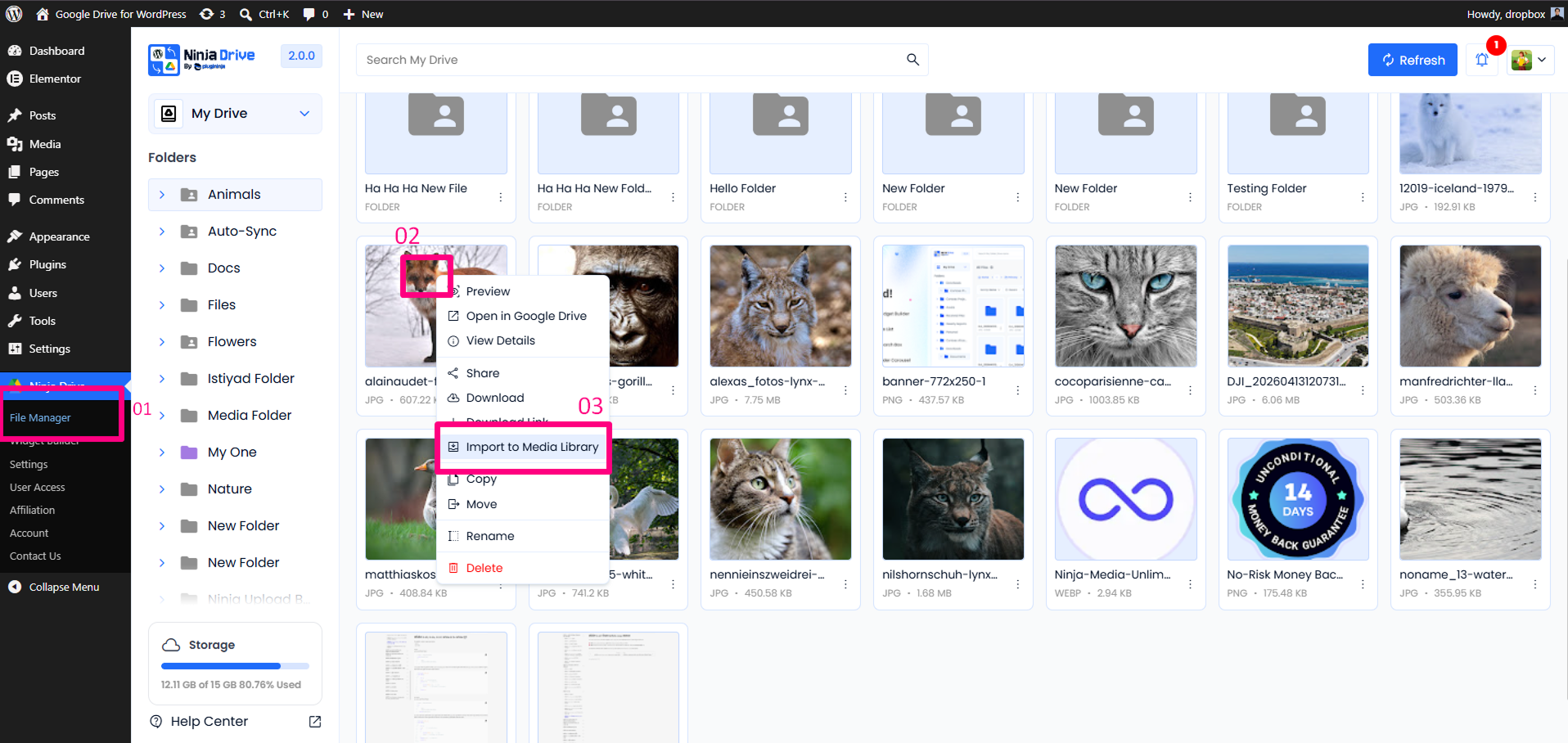
Importing an individual file takes just a few clicks.
- Open the Ninja Drive File Browser.
- Locate the file you want to import.
- Right-click on the file to open the context menu.
- Select Import to Media Library.
Once the process is complete, the file will appear in your WordPress Media Library and can be used like any other uploaded media file.
Bulk Import Multiple Files
Need to transfer several files at once? Ninja Drive supports bulk importing to help you save time when migrating or organizing content.
- Open the Ninja Drive File Browser.
- Select multiple files using the available selection options.
- Right-click on any of the selected files.
- Choose Import to Media Library.
- Wait for the import process to complete.
All selected files will be added to your WordPress Media Library, making them immediately available throughout your website.
Tip: Imported files are stored in your WordPress Media Library, allowing you to use them in posts, pages, Elementor templates, Gutenberg blocks, and WooCommerce products.
Ready to manage and display your Google Drive files directly from WordPress? Get Started with Ninja Drive

 Join Community