





How to Add a Google Drive File in Easy Digital Downloads?
Ninja Drive integrates easily with Easy Digital Downloads (EDD), allowing you to sell and distribute Google Drive files directly from your WordPress website. Whether you’re selling eBooks, software, PDFs, templates, courses, or other digital products, you can select files from Google Drive without manually uploading them to your server.
This helps reduce server storage usage while keeping your digital products organized and easy to manage.
Enable Easy Digital Downloads Integration
Before using Google Drive files in EDD products, make sure the Easy Digital Downloads integration is enabled.
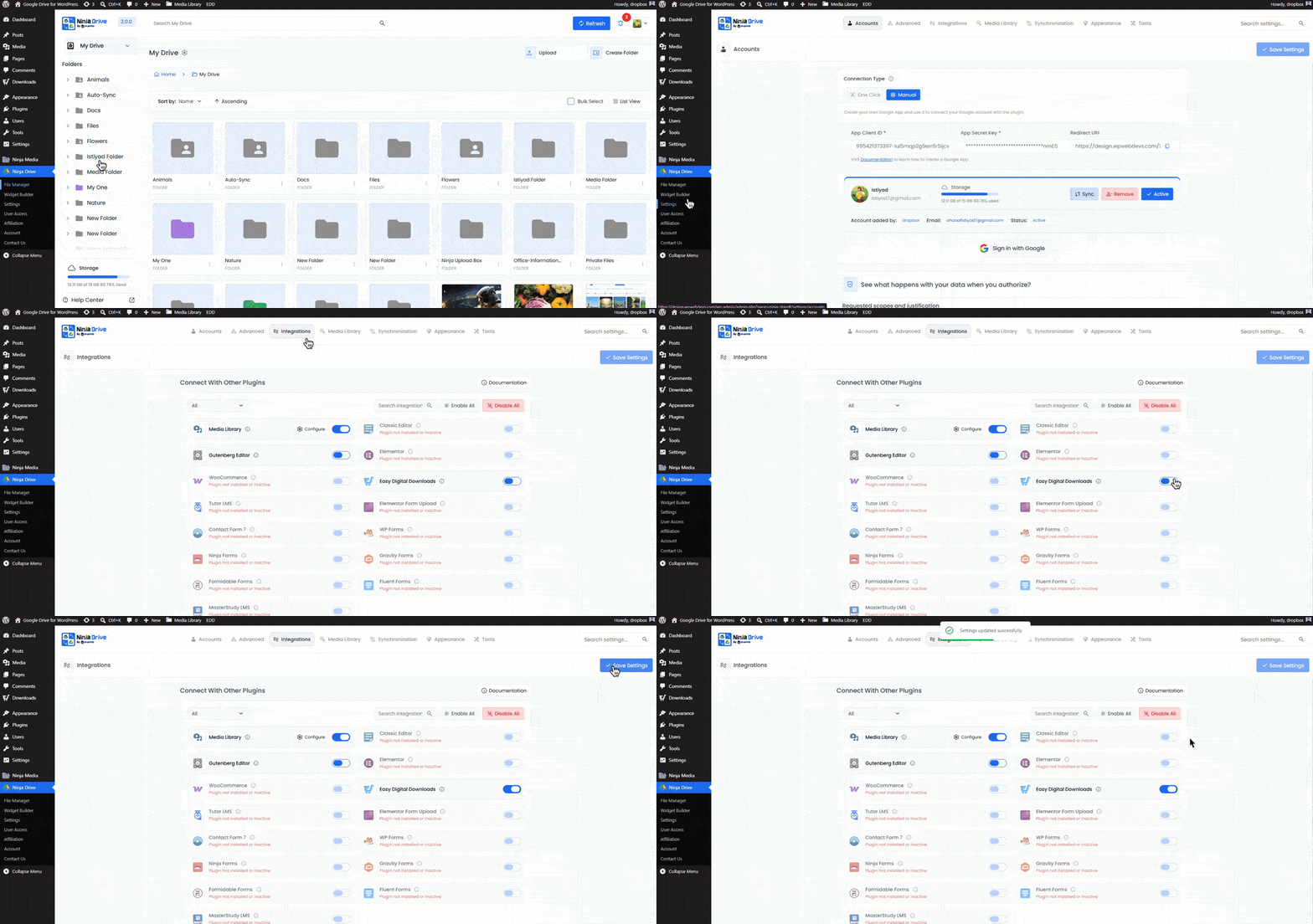
- Navigate to Ninja Drive → Settings.
- Open the Integrations tab.
- Enable Easy Digital Downloads Integration.
- Click Save Changes.
Create or Edit an EDD Product
Once the integration is active, you can attach Google Drive files to any Easy Digital Downloads product.
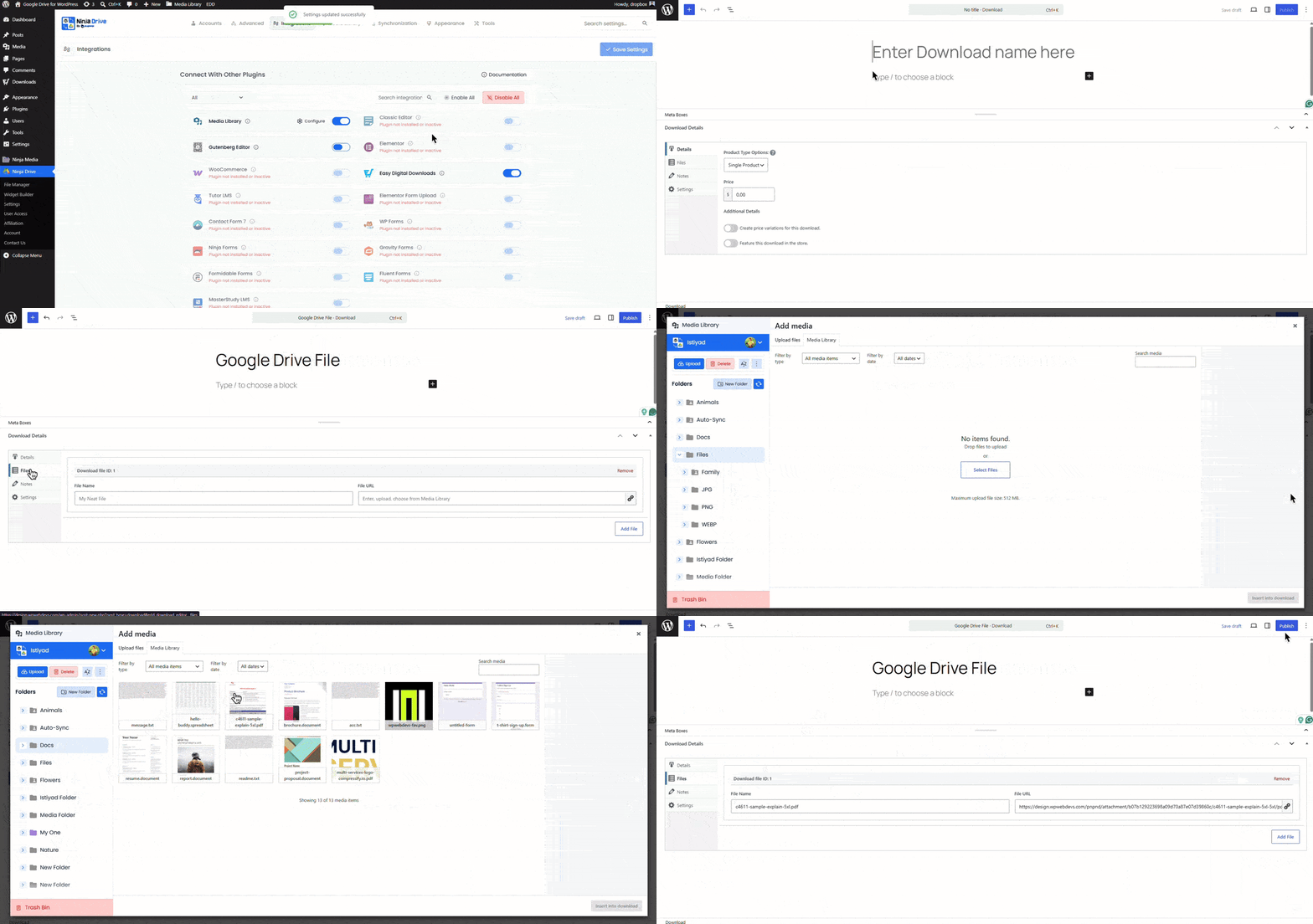
- Go to Downloads from your WordPress dashboard.
- Create a new download or edit an existing one.
- Scroll to the Download Files section.
- Click Add New File.
- Click the file URL field or media selector button to open the file picker.
- Select the Google Drive file you want to sell or distribute.
- Click Insert.
- Enter a download name that will be displayed to customers.
- Publish or update your product.
Customer Download Experience
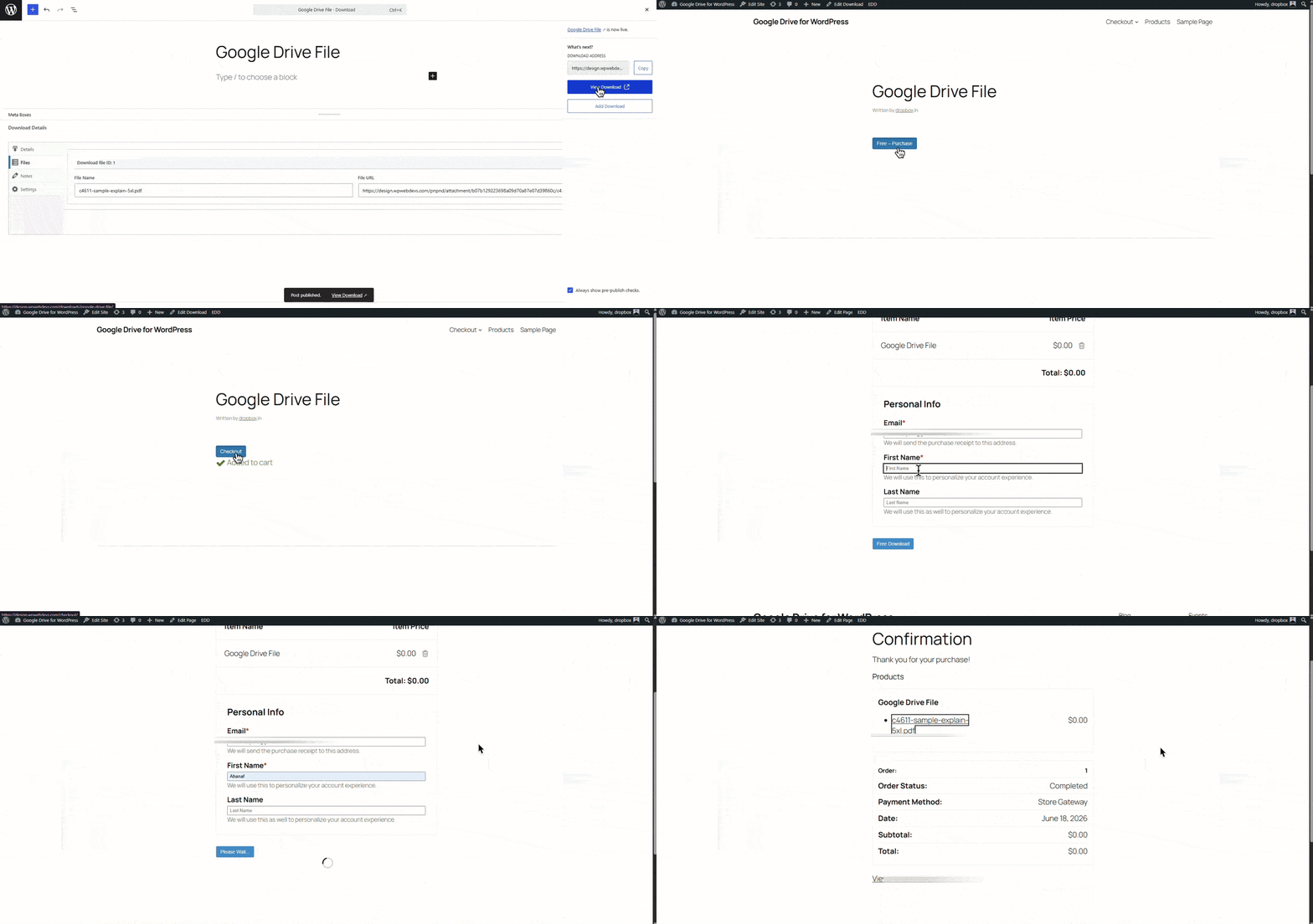
After a successful purchase, customers will be able to access and download their purchased files through the Easy Digital Downloads purchase confirmation page and their download history page.
Ninja Drive automatically handles the Google Drive file connection, allowing you to manage your digital products from a single location while delivering files securely to your customers.
Ninja Drive is ideal for selling eBooks, PDFs, software, design resources, audio files, video downloads, templates, courses, and other digital products directly from your Google Drive account.
Output

 Join Community