






How to Create a Google Drive Search Box Widget Using Ninja Drive
The Search Box widget adds a real-time search interface to your WordPress site that searches directly through your connected Google Drive. Visitors type a query and matching files appear instantly — no folder browsing needed. So now let’s see how to create a Google Drive Search Box Widget using Ninja Drive
When to Use the Search Box Widget
- Documentation portals with large numbers of files
- Resource libraries where visitors need to find specific documents
- Client portals with many shared project files
- Knowledge bases storing articles, guides, or templates in Google Drive
Step 1: Open the Widget Builder
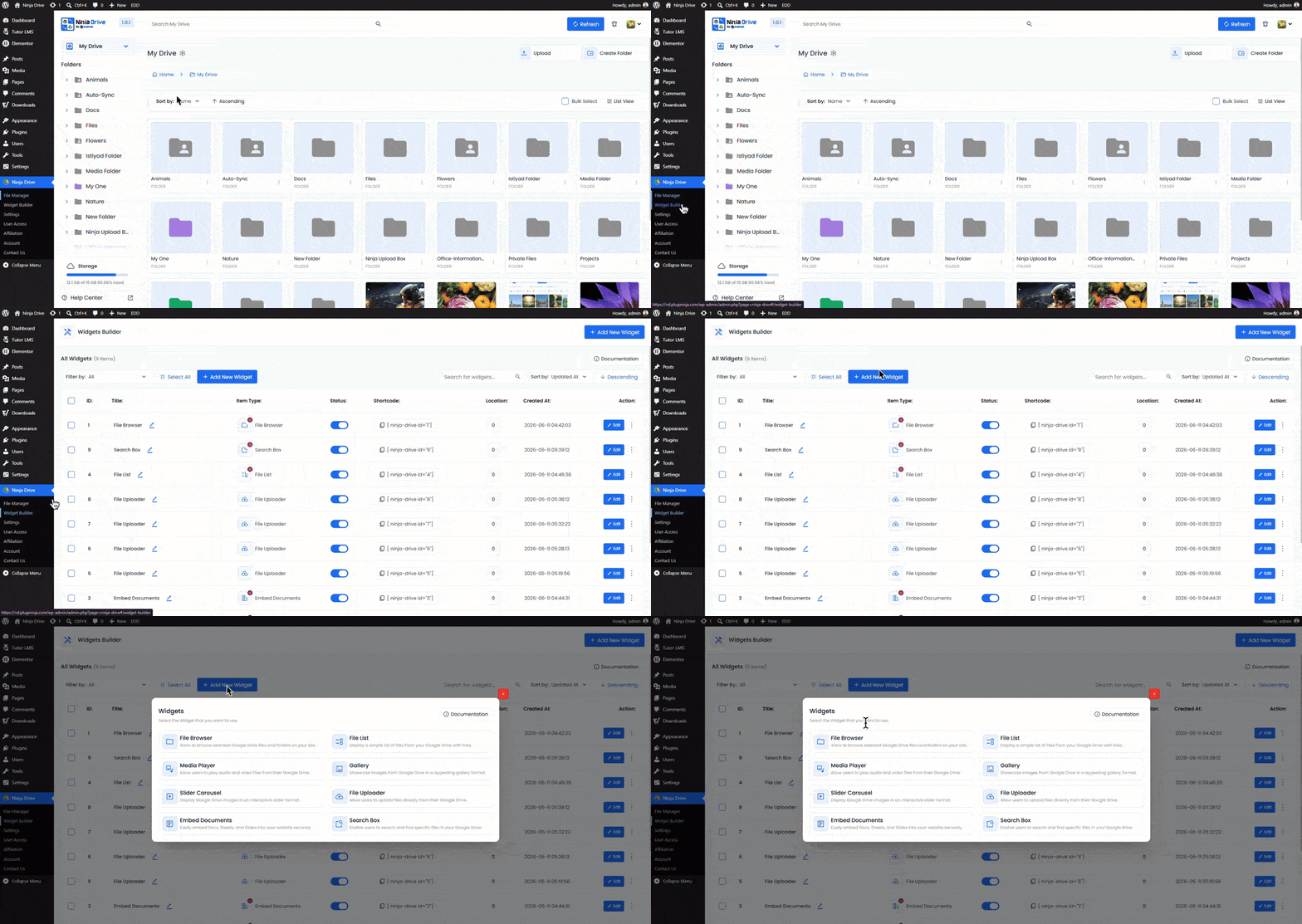
Go to Ninja Drive → Widget Builder in your WordPress dashboard.
Step 2: Add a New Widget and Select “Search Box”
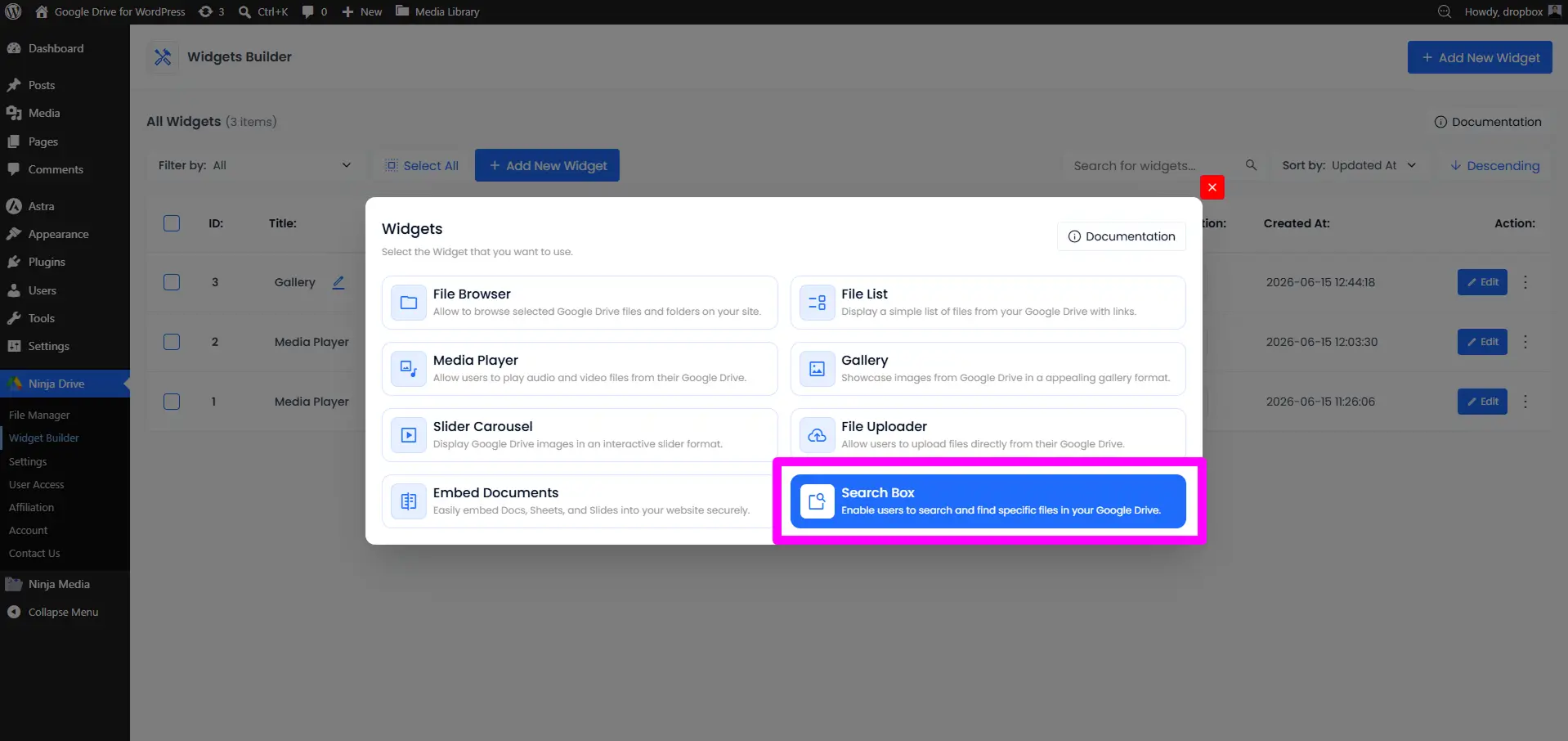
Click Add New Widget and choose Search Box from the widget type selector.
Step 3: Select Source From Google Drive
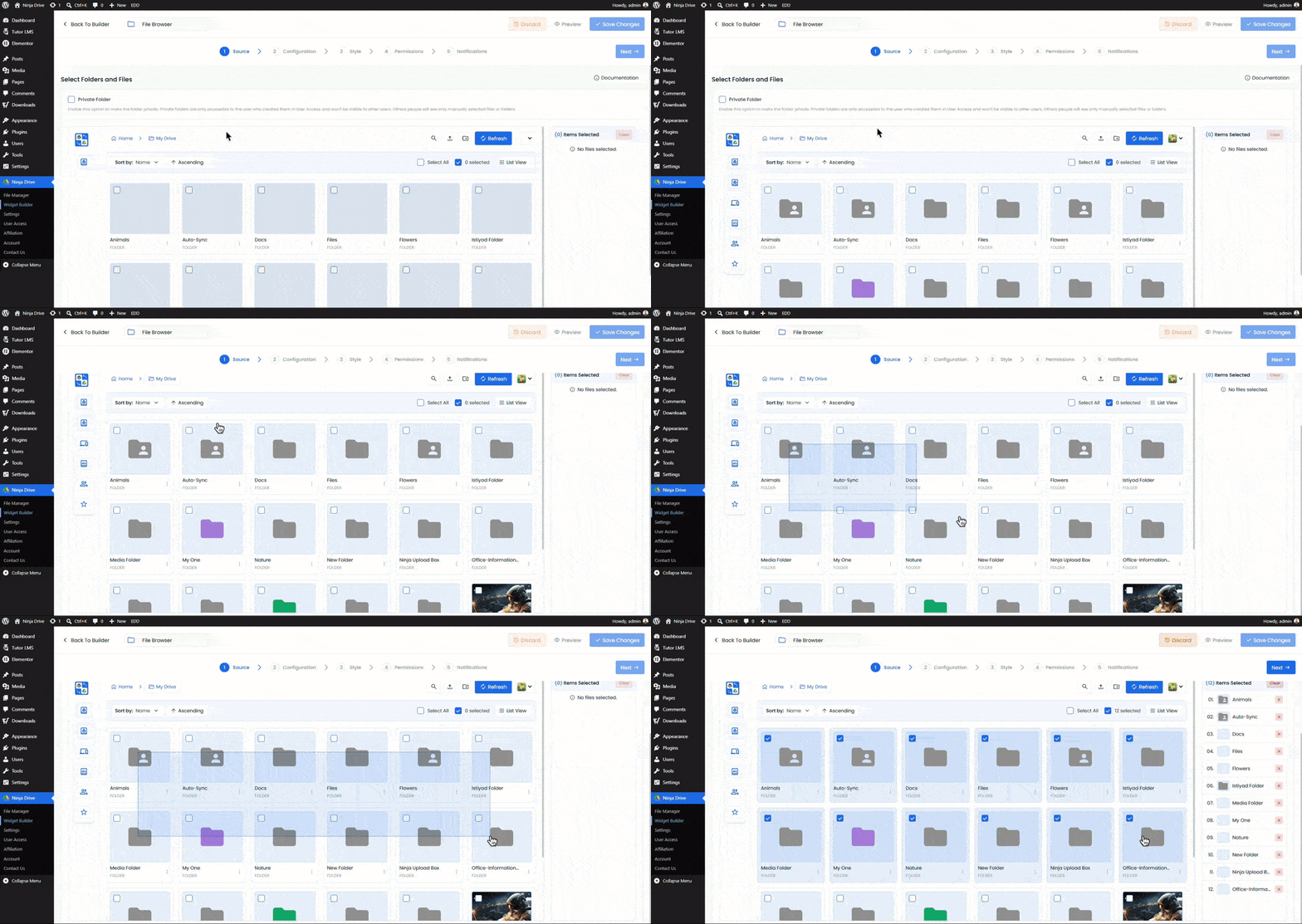
After selecting the Search Box, you will land in the source tab. From here, select the file & Folders that you want to show in the Search box.
Step 4: Configure the Search Box
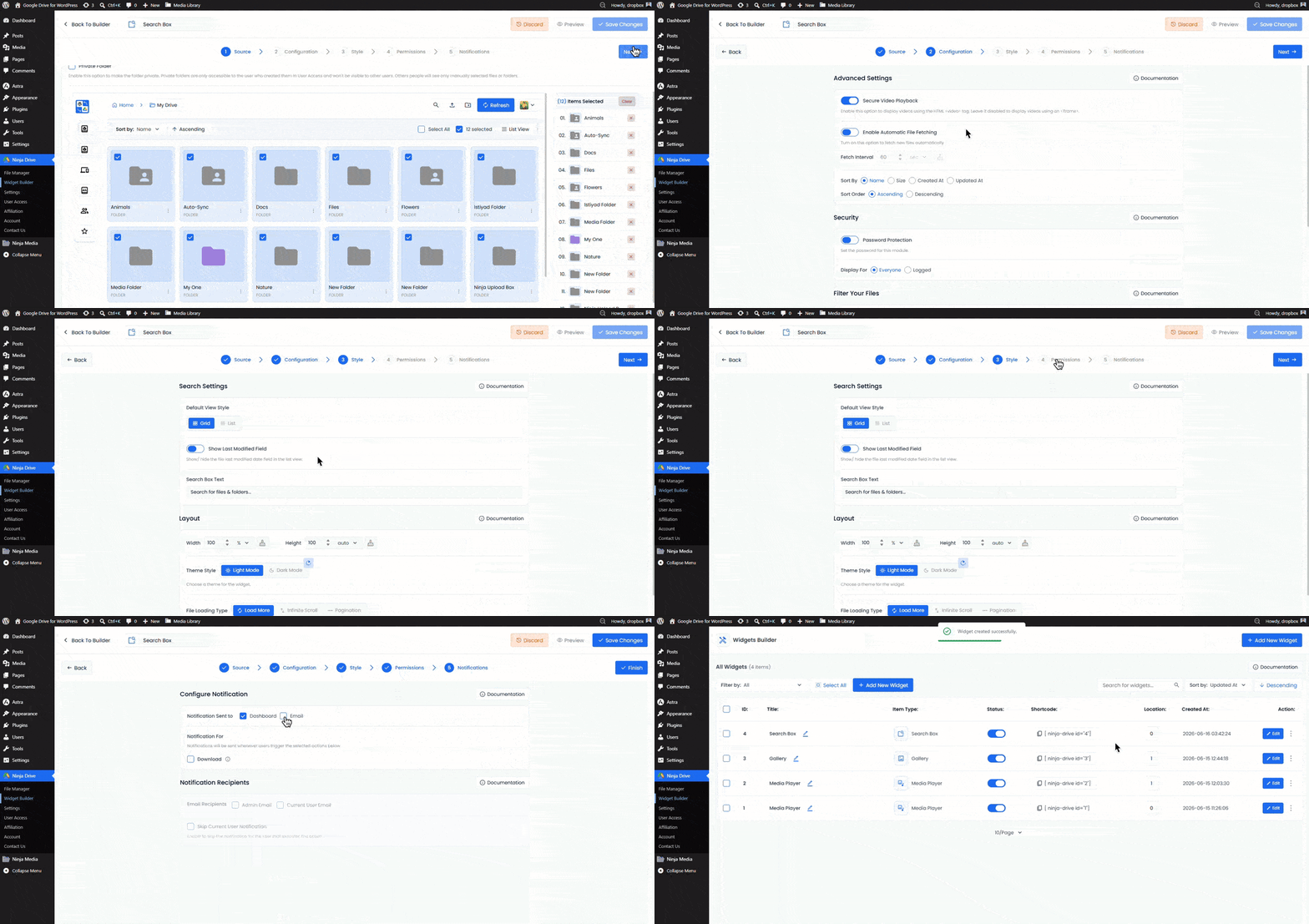
Configuration Tab
- Enable: Secure Video Playback.
- Automatic File Fetching: Turn on this option to fetch new files automatically
- Password Protection: Set any password for the widget.
- Filter Your File: You can filter all your selected files, which will show or which will not.
Style Tab
- Default View Style: Choose your preferred gallery style from Grid or List.
- Show last modified field: Show/ hide the file last modified date field in the list view.
- Search Box Text: Text that shows in the search box.
- Layout: Configure the gallery layout, including image dimensions and other display settings, such as the number of images to show on initial load.
Permission Tab
- Preview: Allow users to view your images in a lightbox.
- Download Files: Allow users to download files directly to their device.
Notification Tab
Notification For: Notifications will be sent whenever users trigger the selected actions below.
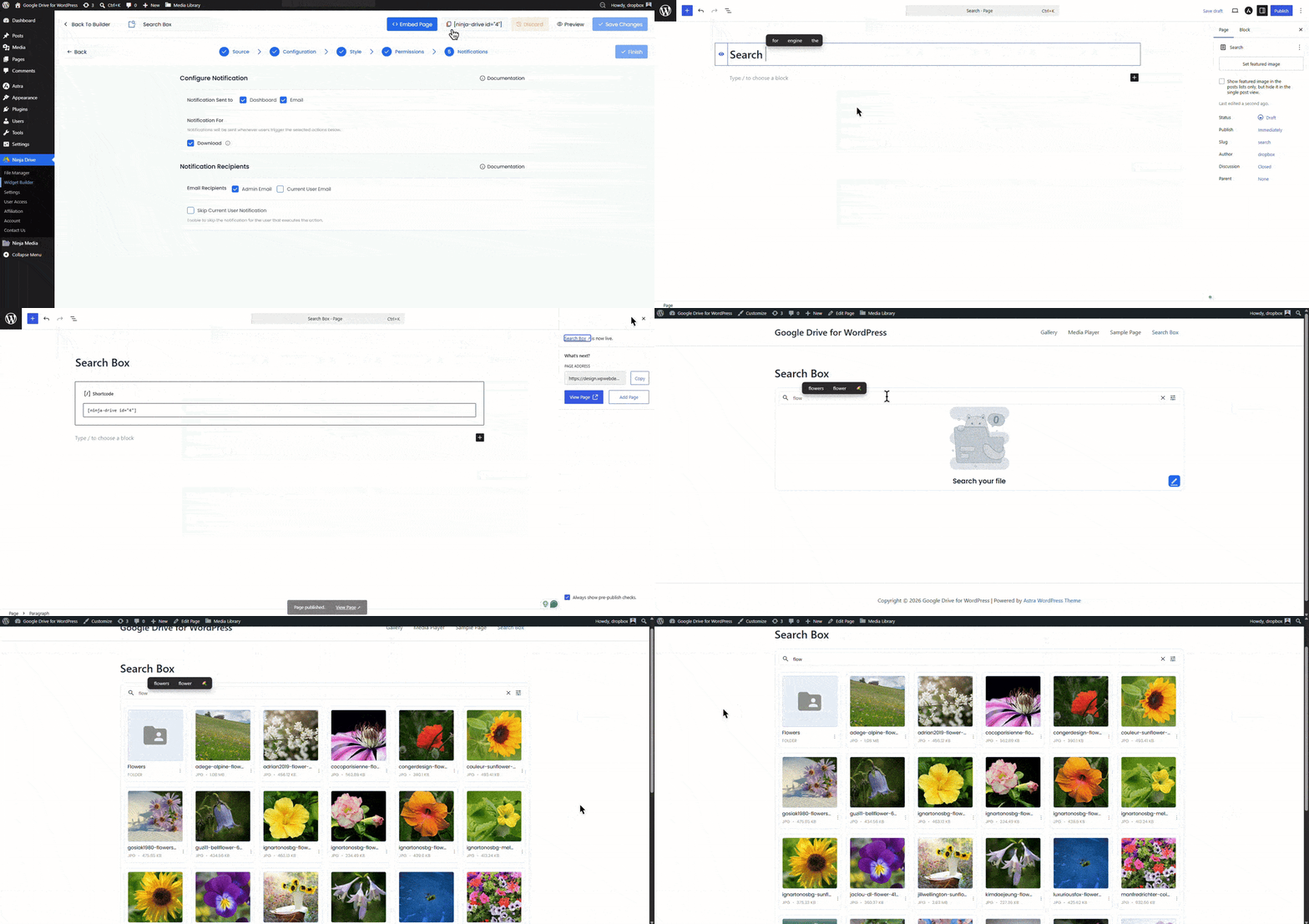
Step 5: Save and Copy the Shortcode
Click Save and copy the shortcode:
[ninja_drive id="*"]Step 6: Embed on a Page or Post
Paste the shortcode into any Gutenberg Shortcode block, Classic Editor text view, or Elementor Shortcode widget.

 Join Community