




How to Create a Media Player Widget Using Ninja Drive?
The Media Player widget lets you stream audio and video files stored in Google Drive directly on your WordPress site — no re-uploading, no server storage costs. Visitors play files inline without leaving the page. So let’s see how to create a Media Player Widget using Ninja Drive
Supported File Types
- Video: MP4, MKV, MOV, AVI, WebM
- Audio: MP3, WAV, OGG, AAC, FLAC
Step 1: Open the Widget Builder & Add a New Widget
- Go to Ninja Drive → Widget Builder in your WordPress dashboard.
- Click Add New Widget
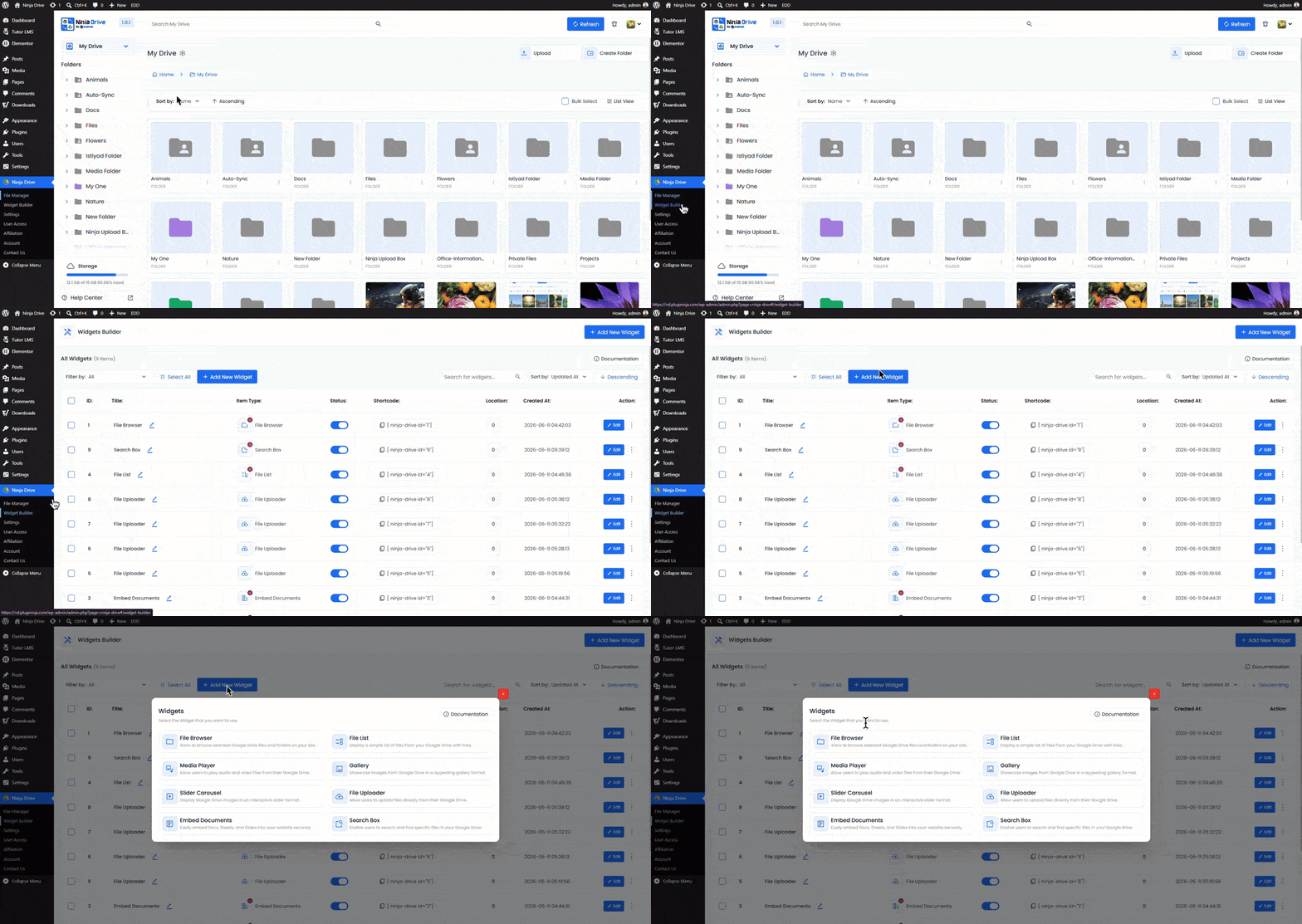
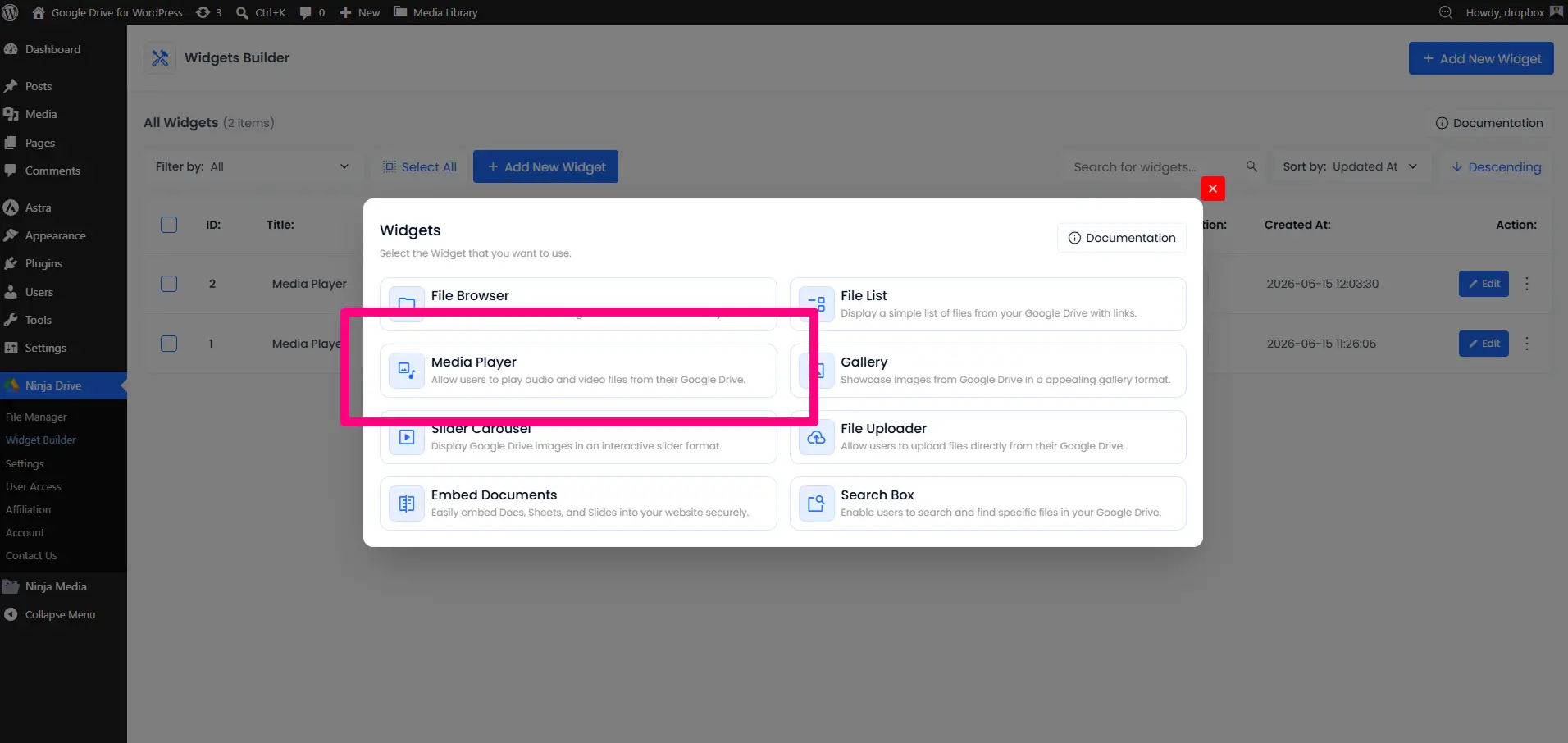
Step 2: Select “Media Player”
- Then choose Media Player from the widget type selector.
Step 3: Select Source From Google Drive
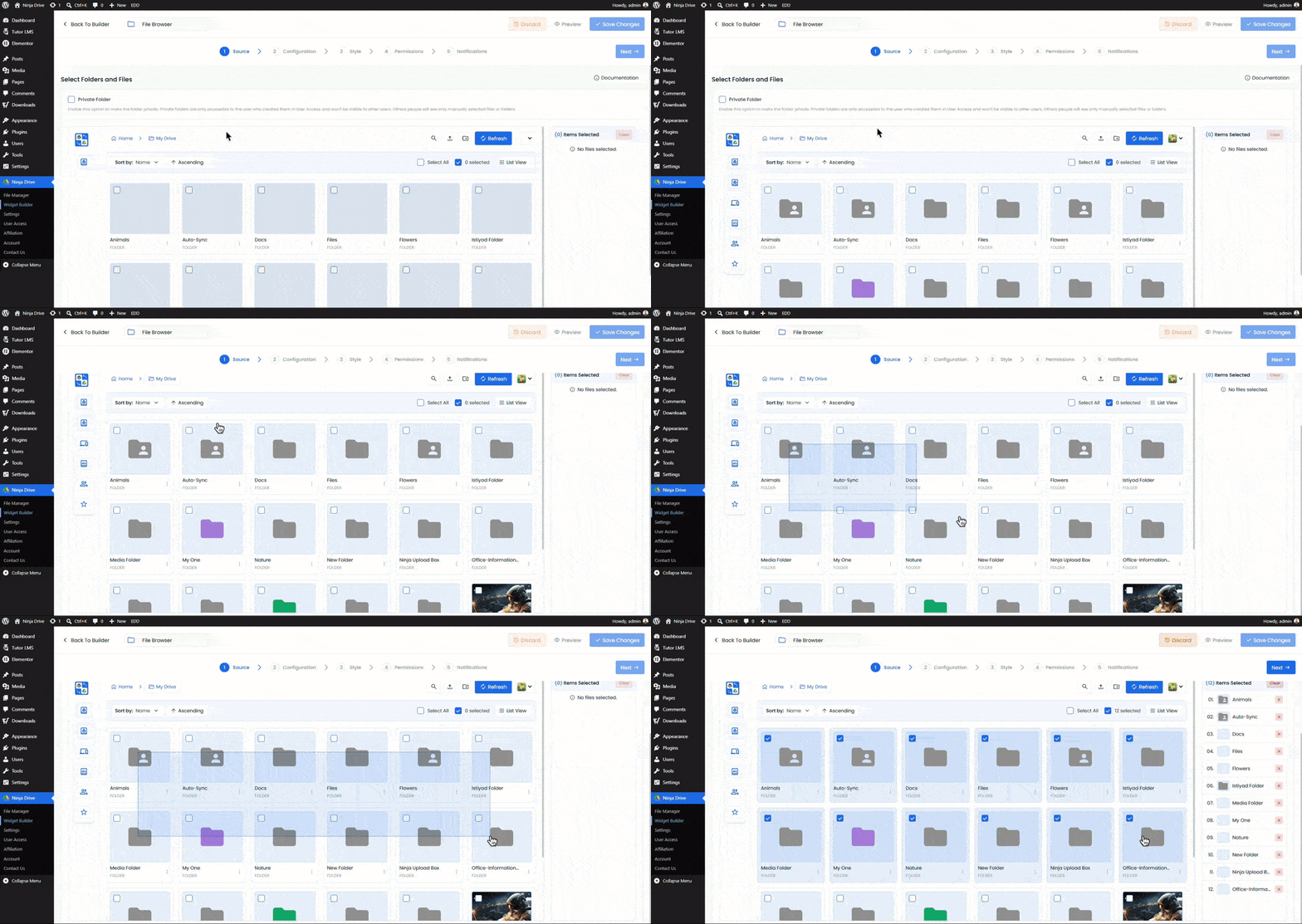
After selecting Media Player, you will land in the source tab. From here, select the audio and videos that you want to show in the Media Player.
Step 4: Configure the Media Player Settings
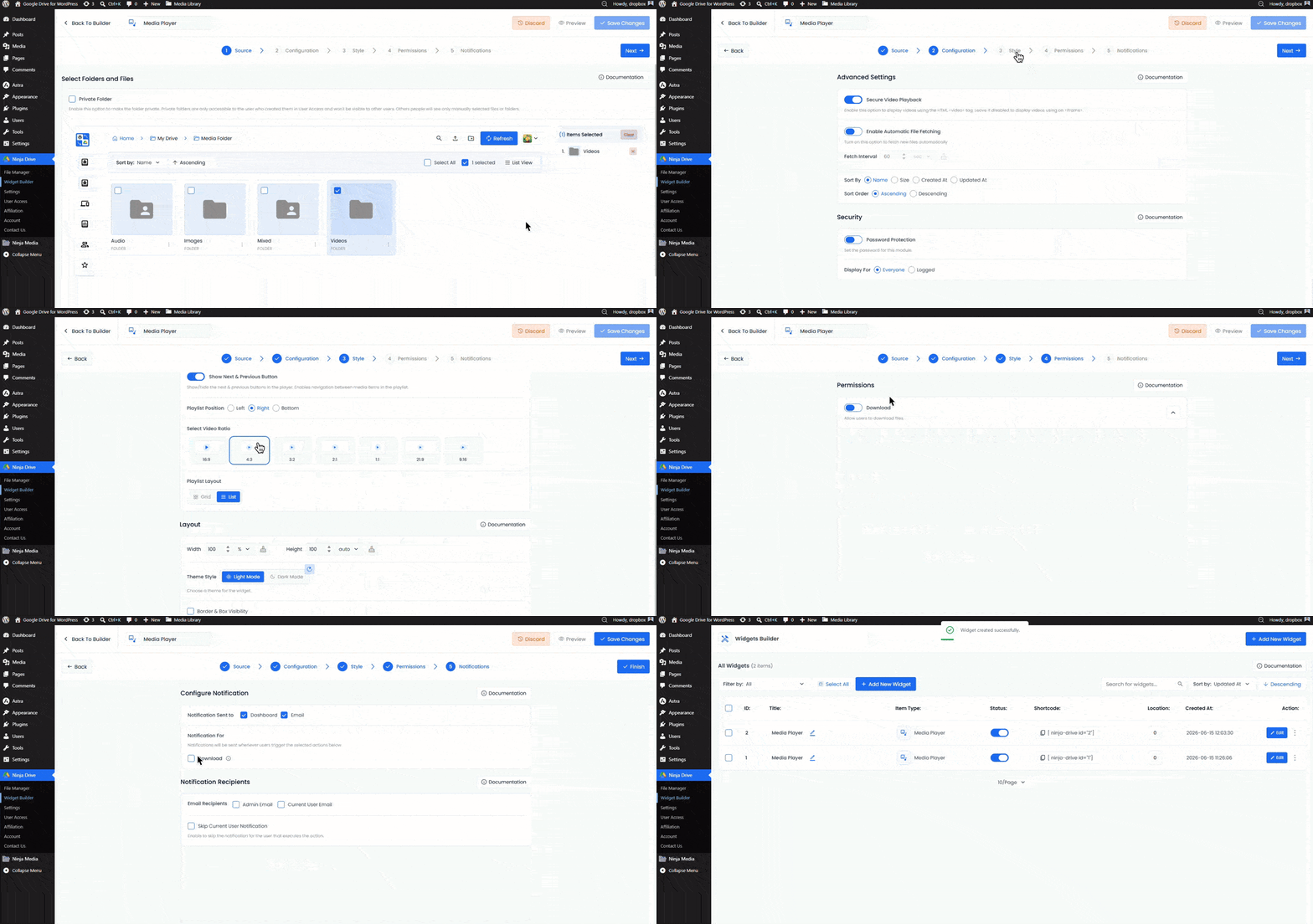
Configuration Tab
- Enable: Secure Video Playback.
- Automatic File Fetching: Turn on this option to fetch new files automatically
- Password Protection: Set any password for the widget.
- Filter Your File: You can filter all your selected files, which will show or which will not.
Style Tab
- Show Playlist: Under the Show Playlist option, you can configure the following settings: Opened Playlist, Show Number Prefix, and Show Thumbnails.
- Playlist Title: Set a custom title for your playlist, such as “My Latest Vlogs”.
- Next & Previous Buttons: You can show or hide the Next and Previous buttons for the playlist.
- Playlist Position: You can also change the position of the playlist.
- Select Video Ratio: Choose from 7 different video ratios for your playlist.
- Playlist Layout: Select your preferred default layout, either Grid or List.
Permission Tab
Download Files – Allow users to download files directly to their device.
Notification Tab
Notification For: Notifications will be sent whenever users trigger the selected actions below.
Step 5: Save and Copy the Shortcode
Click Save. Copy the generated shortcode:
[ninja_drive id="*"]Step 6: Embed the Media Player on a Page or Post
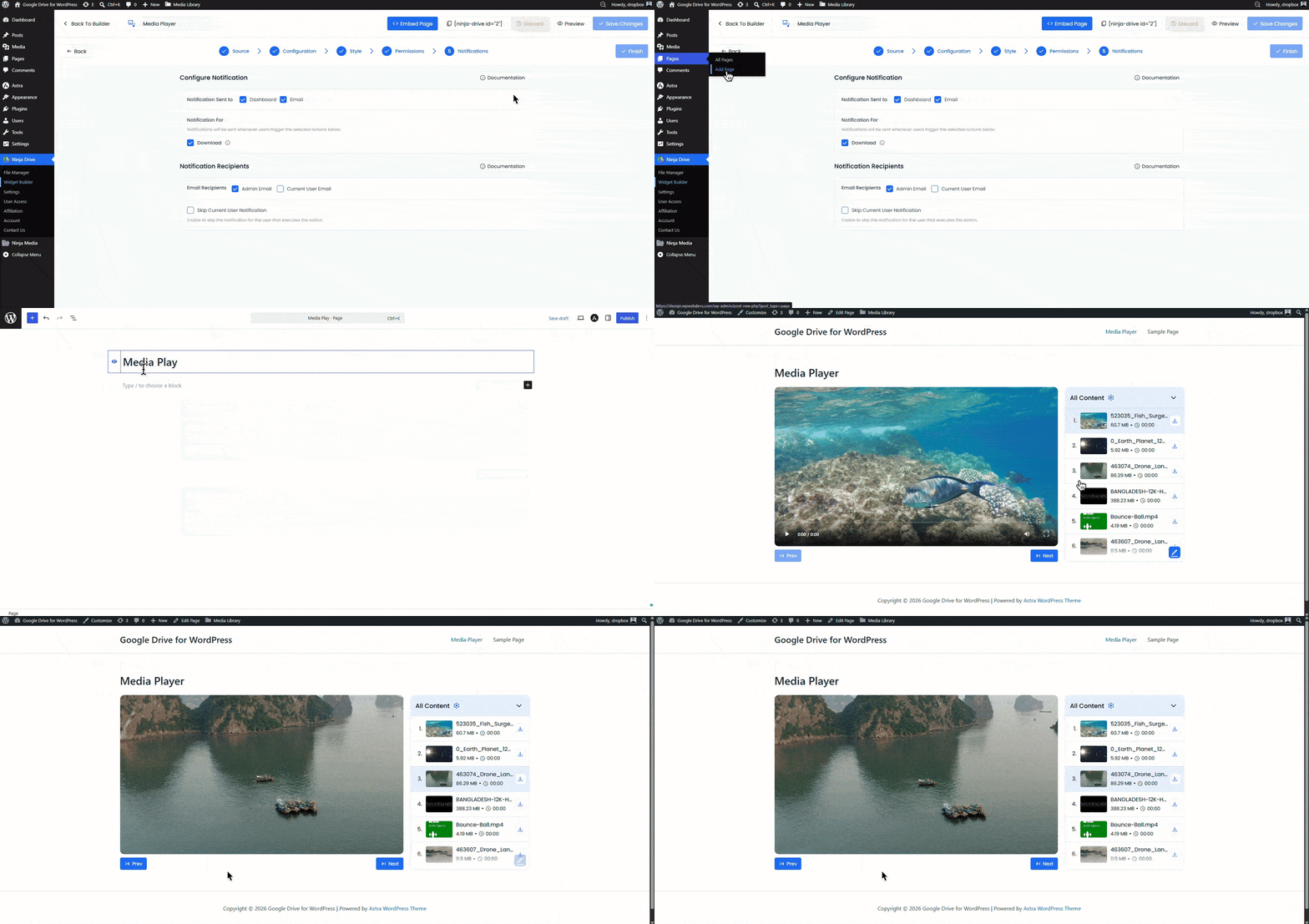
Paste the shortcode into any page, post, or widget area using a Shortcode block (Gutenberg), the Text tab (Classic Editor), or a Shortcode widget (Elementor).

 Join Community