





How to Create a Slider Carousel Widget Using Ninja Drive
The Slider Carousel widget displays images and documents from your Google Drive in an auto-playing, swipeable carousel — perfect for showcasing portfolios, product galleries, event photos, or featured documents.
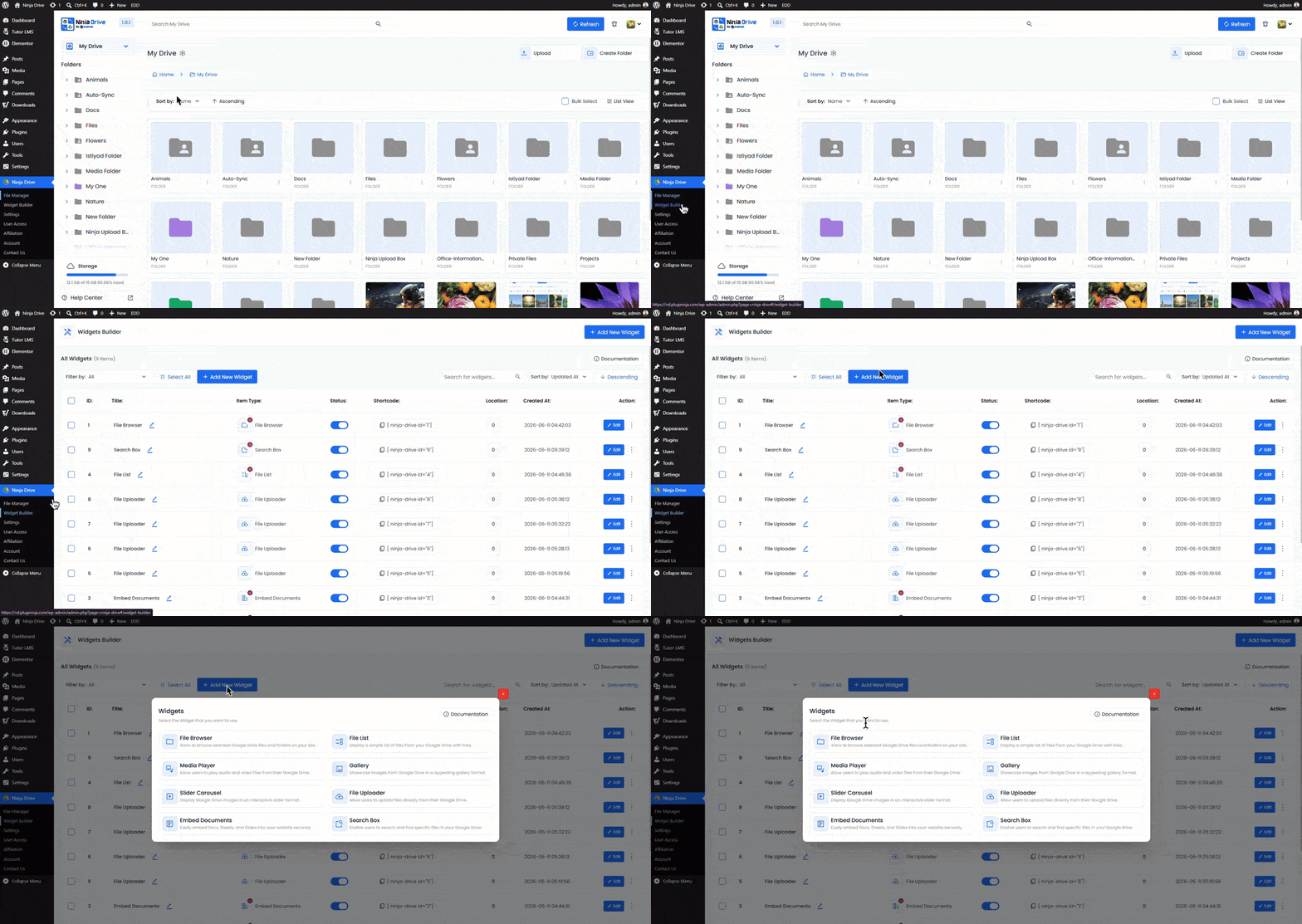
Step 1: Open the Widget Builder
Go to Ninja Drive → Widget Builder in your WordPress dashboard.
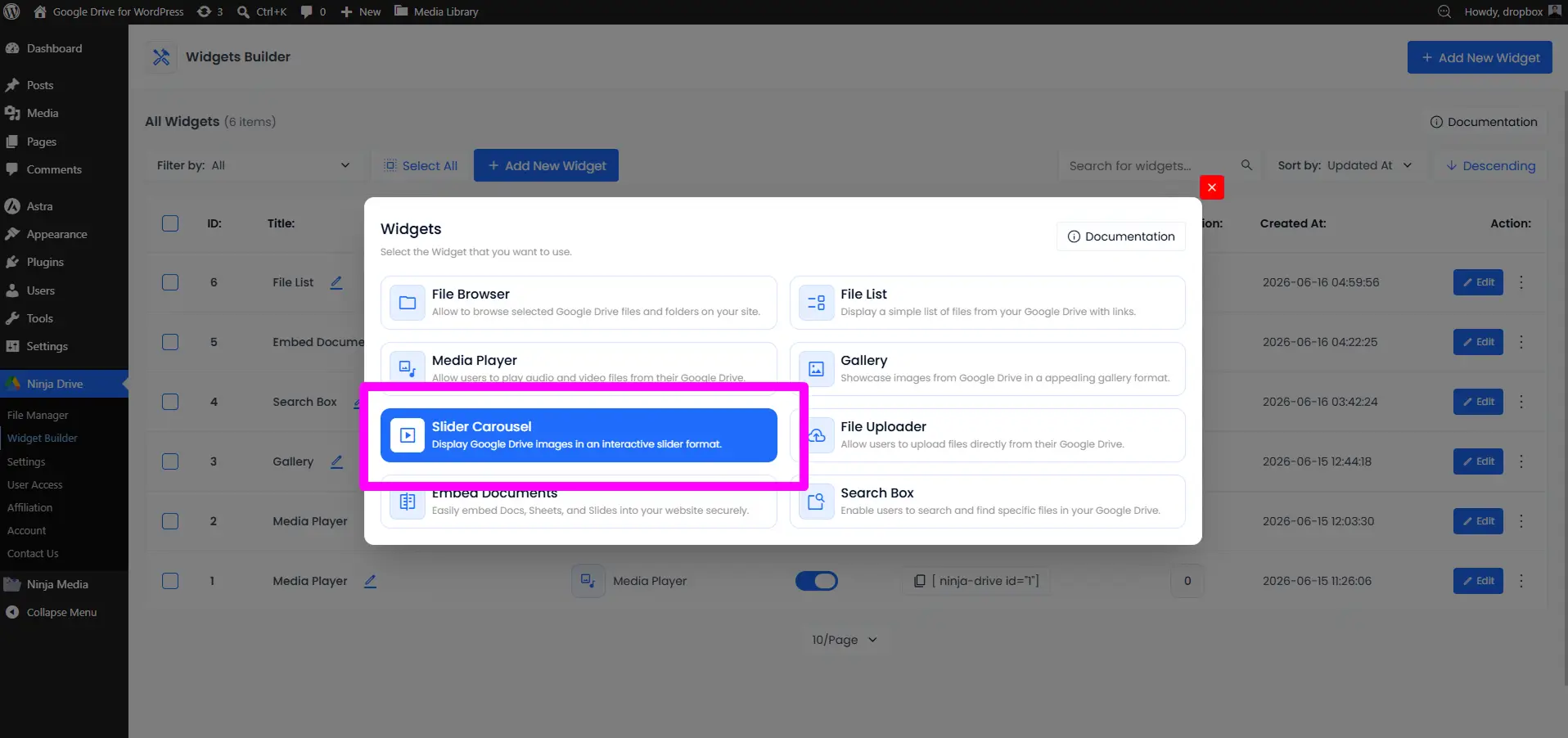
Step 2: Add a New Widget and Select “Slider Carousel”
Click Add New Widget, then select Slider Carousel from the widget type selector.
Step 3: Select Source From Google Drive
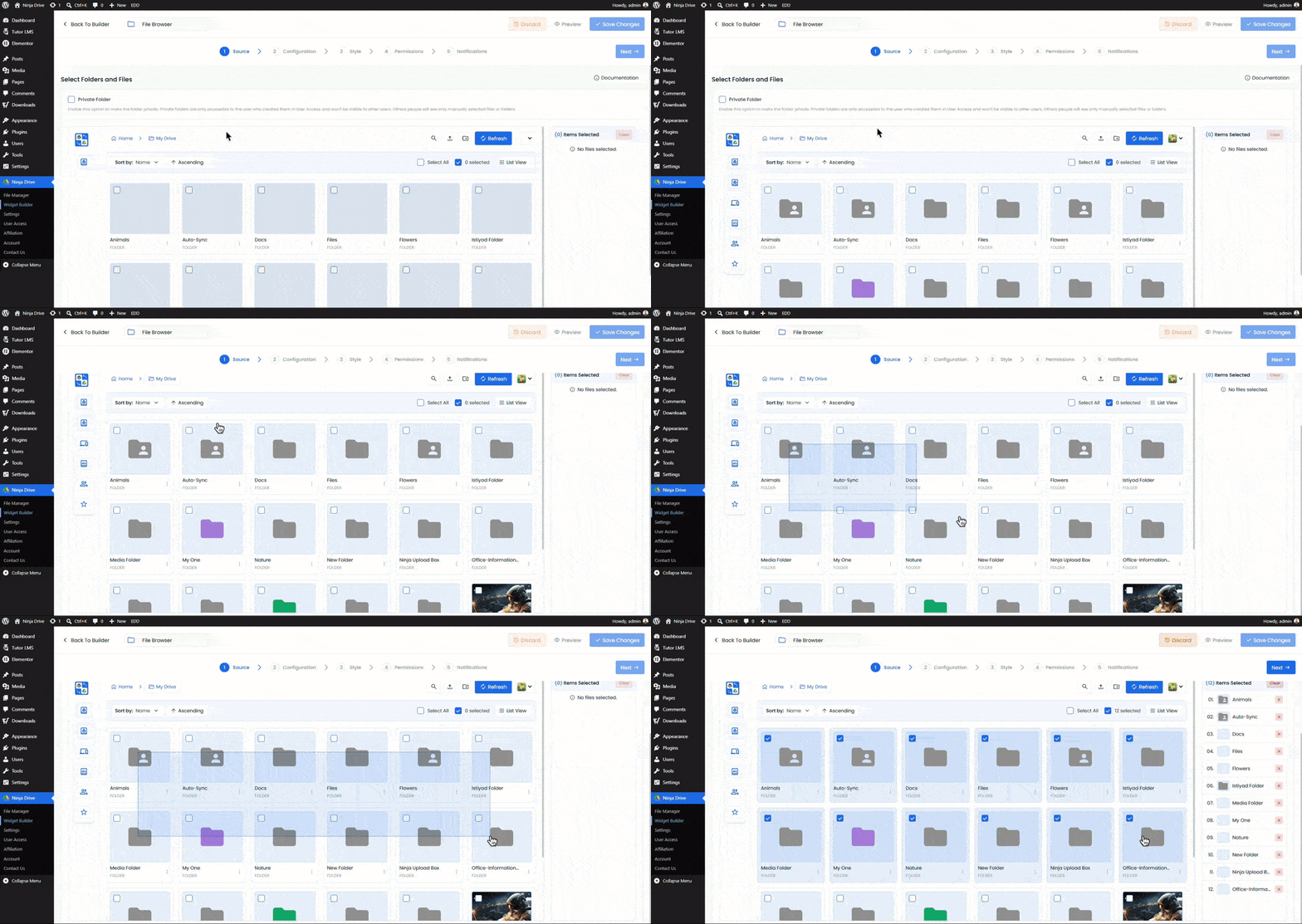
After selecting the Slider Carousel, you will land in the source tab. From here, select the photos that you want to show in the Slider Carousel.
Step 3: Configure the Slider Settings
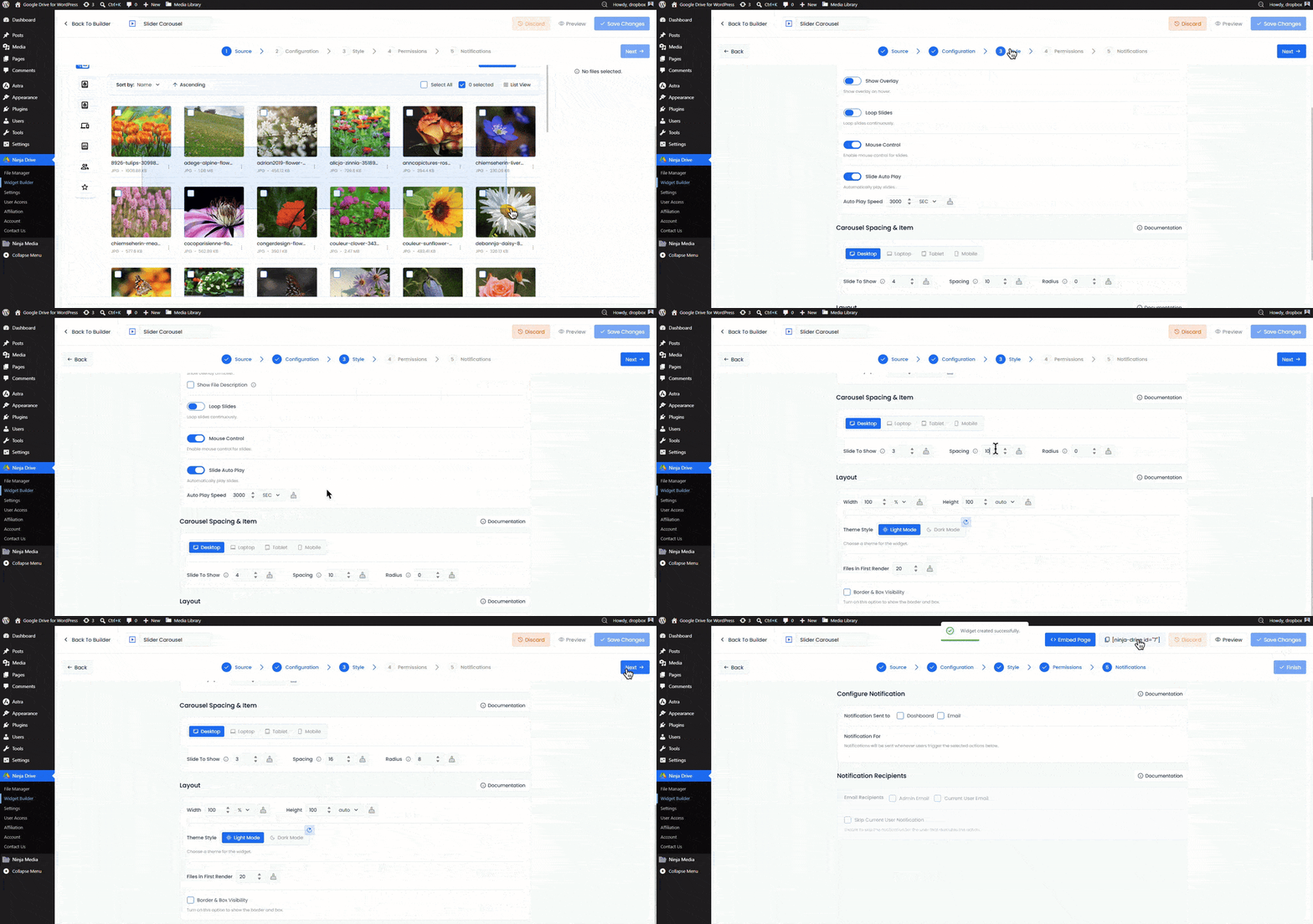
Configuration Tab
- Automatic File Fetching: Turn on this option to fetch new files automatically
- Password Protection: Set any password for the widget.
- Filter Your File: You can filter all your selected files, which will show or which will not.
Style Tab
- Slider direction: Select either Horizontal or Vertical.
- Slider type: Select either Normal or Centered.
- Slider effect: Select any of Slide, Flip, or Fade.
- Navigation: Select any of Arrow & Dots, Arrows, Dots, None.
- Image quality: Select the quality of the image from Original, Large, Medium, or Thumbnail.
- Show overlay: Show overlay on hover.
- Loop slides: Loop slides continuously.
- Mouse control: Enable mouse control for slides.
- Slide auto play: Automatically play slides.
- Carousel spacing: More options like Slide to show, Spacing, and Radius.
- Layout: Configure the gallery layout, including image dimensions and other display settings, such as the number of images to show on initial load.
Permission Tab
- Preview: Allow users to view your images in a lightbox.
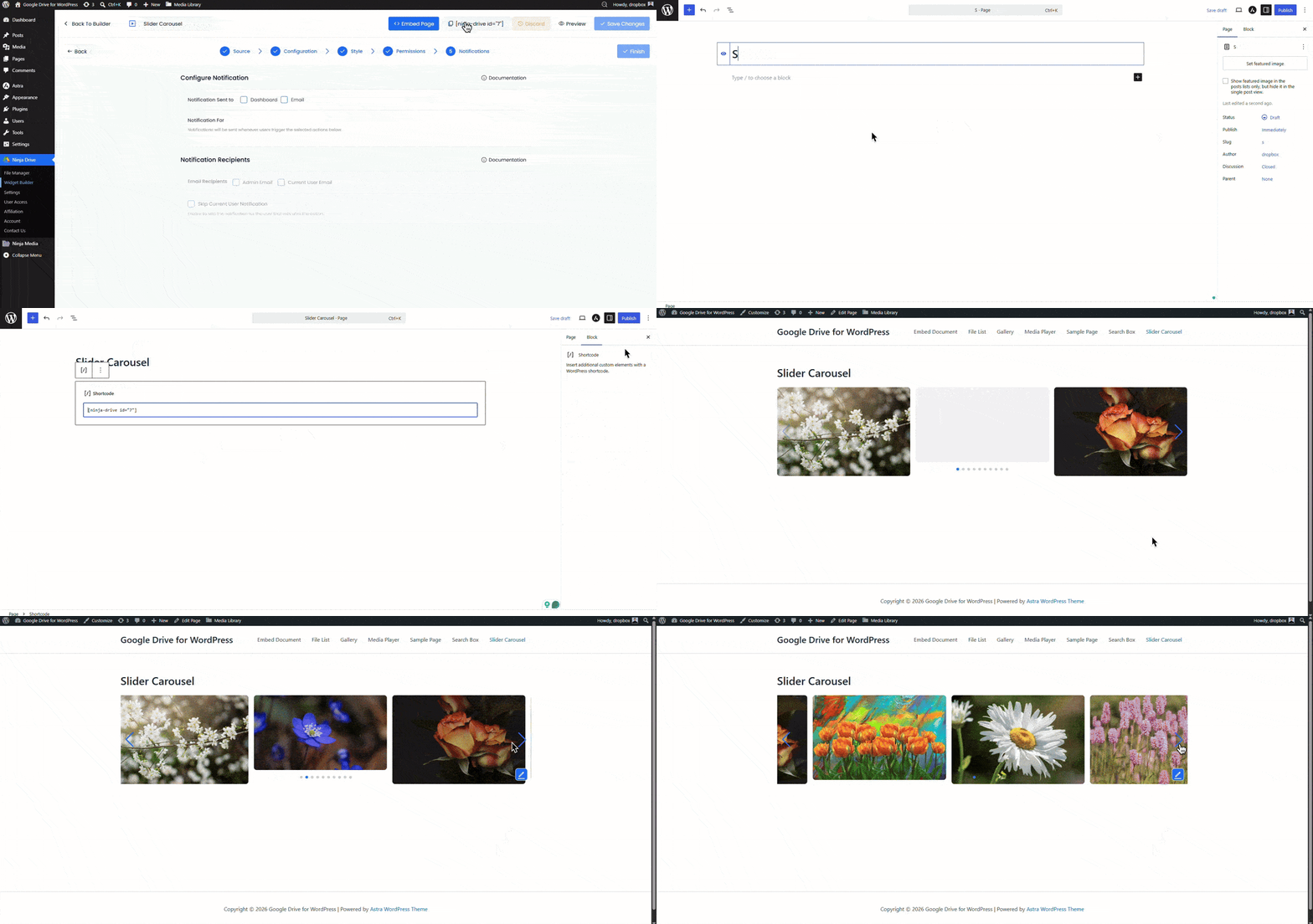
Step 4: Save and Copy the Shortcode
Click Save and copy the shortcode:
[ninja_drive id="*"]Step 5: Embed on a Page or Post
Paste the shortcode into any Gutenberg Shortcode block, Classic Editor text view, or Elementor Shortcode widget to display the slider.

 Join Community