






Enable SVG Support In WordPress
Everyone should enable SVG support in WordPress uploads. By default, WordPress does not allow SVG file uploads because of potential security risks. However, SVG files are lightweight, scalable, and perfect for logos, icons, and modern web graphics.
In this guide, you will learn two ways to enable SVG support in WordPress.
Let’s See How to Enable SVG Support In WordPress
Method 1: Enable SVG Support Using Code
You can manually allow SVG uploads by adding code to your WordPress theme or site files.
Add this code to your functions.php file:
function allow_svg_upload($mimes) {
    $mimes['svg'] = 'image/svg+xml';
    return $mimes;
}
add_filter('upload_mimes', 'allow_svg_upload');
While this enables SVG uploads, it does not sanitize SVG files. Unsafe SVG files may contain harmful code that can create security vulnerabilities.
You may need additional sanitization libraries or plugins for proper protection.
Method 2: Enable SVG Support with Ninja Media
Ninja Media provides a safer and easier way to enable SVG uploads with built-in sanitization support.
Steps to Enable SVG Uploads
- Install and activate Ninja Media
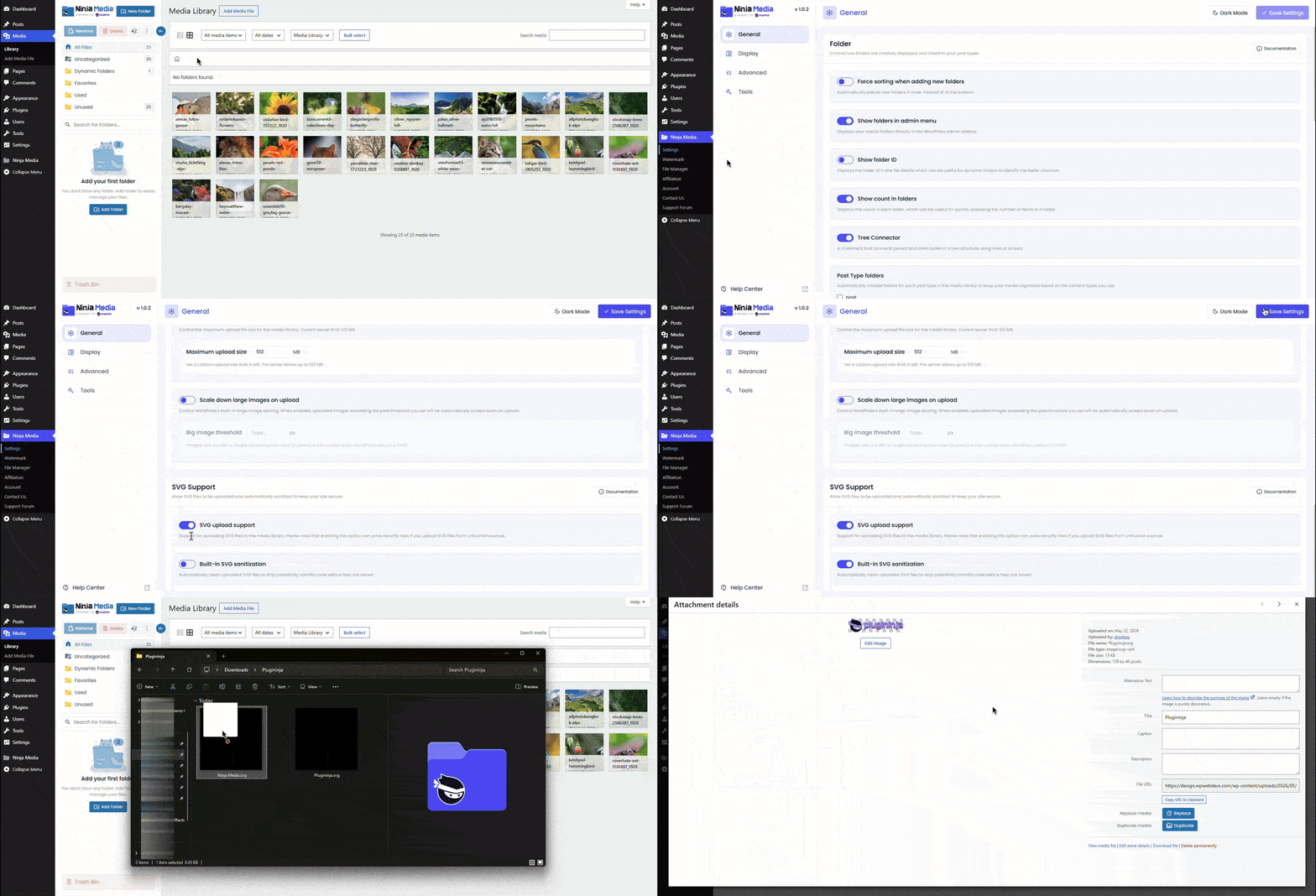
- Go to Ninja Media → Settings → General
- Find the Allow SVG & Sanitization option
- Enable the toggle
- Click Save Changes
That’s it. You can now safely upload SVG files to your WordPress media library.
Why Use Ninja Media for SVG Support?
Ninja Media not only enables SVG uploads but also helps sanitize files for better security.
Benefits include:
- Easy setup without coding
- Safer SVG uploads
- Built-in sanitization
- Better media management
- Beginner-friendly solution
Final Thoughts
Enabling SVG support in WordPress can improve your website design and performance, but security is important. Instead of editing code manually, Ninja Media gives you a simple and secure way to upload SVG files directly from your WordPress dashboard.

 Join Community