






Learning how to upload large files to wordpress without triggering server timeouts is an essential skill for modern creators and developers in 2026. If you have ever tried to add a podcast episode, video file, or high-resolution design asset to your media library, you have likely encountered the dreaded upload size error. Standard web hosting packages enforce strict server ceilings on file sizes, causing uploads over a few megabytes to fail unexpectedly.
Table of Contents
Why Server Limits Block Large File Uploads in WordPress
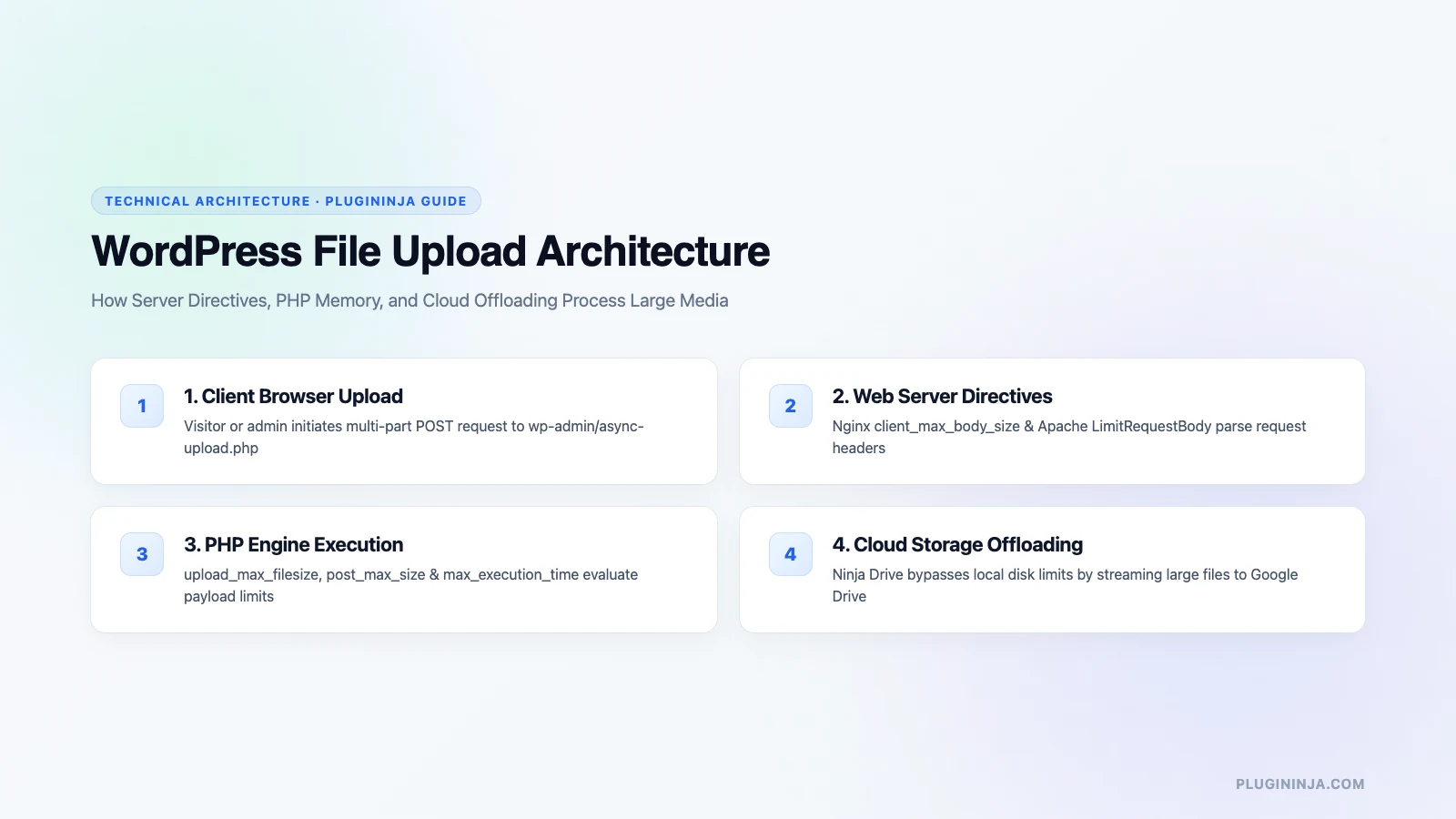
WordPress itself does not impose an arbitrary upload limit. Instead, the upload ceiling shown in your administrative dashboard is dictated by your hosting server’s PHP directives. Four distinct directives govern how your origin server handles incoming uploads: upload_max_filesize, post_max_size, memory_limit, and max_execution_time.
According to the official WordPress Documentation on common server upload errors, entry-level shared hosting plans commonly set upload caps between 2 MB and 64 MB to prevent shared hardware from becoming overwhelmed. When an uploaded file exceeds any of these parameters, PHP terminates the process immediately.
Traditional Methods to Upload Large Files to WordPress
When administrators attempt to upload large files to wordpress, standard tutorials suggest editing server configuration files. While these methods can help with moderately sized files, they have clear trade-offs:
1. Editing .htaccess on Apache: You can add custom PHP value flags to your root .htaccess file. Adding upload_max_filesize and post_max_size allows larger requests. However, syntax mistakes can trigger 500 internal server errors across your entire website.
2. Updating php.ini or .user.ini: If your web host grants access to custom PHP initialization files, increasing memory limits and execution times allows larger HTTP POST requests. However, shared hosts frequently override or disable user ini files.
3. Configuring Nginx Directives: If your hosting stack runs Nginx instead of Apache, PHP settings alone will not solve the issue. You must edit nginx.conf to increase client_max_body_size to match your intended file sizes.
4. Modifying wp-config.php: Defining a higher memory limit in your WordPress configuration file provides more RAM for media processing, though it does not change web server upload caps directly.
5. Uploading via SFTP: Bypassing the browser entirely by transferring files via SFTP directly into the wp-content/uploads directory avoids PHP timeouts. However, files uploaded via FTP do not appear in your media library without manual database registration.
Why Traditional Server Adjustments Create Hosting Risks
While raising PHP limits solves the immediate upload barrier, storing gigabytes of media on your primary hosting server creates hidden technical debt. First, large video and zip files bloat your automated website backups, causing scheduled backup jobs to fail or consume expensive cloud storage quotas.
Second, when multiple visitors stream large audio or video assets simultaneously, your origin web server consumes valuable PHP worker threads and disk I/O. This resource contention slows down database queries, increases page load times, and degrades visitor experience.
The Modern Way to Upload Large Files to WordPress
The modern architectural solution is to decouple massive media storage from your application server entirely. By integrating cloud storage solutions like Ninja Drive, you can connect your Google Drive accounts directly to your website. This allows visitors to view, stream, or download large files while your origin hosting remains fast and unencumbered.
Furthermore, maintaining clean media organization is simple when you pair cloud offloading with Ninja Media. Creating visual folders inside your dashboard ensures that assets remain organized and accessible across all editorial teams. Learn more about website optimization on the PluginInja blog.
Step-by-Step Guide to Upload Large Files to WordPress via Cloud
Follow these straightforward steps to implement an external cloud storage workflow on your website:
Step 1: Connect Your Cloud Storage: Authenticate your Google Drive or cloud storage account using secure OAuth credentials, avoiding insecure FTP passwords.
Step 2: Upload Files to Cloud Folders: Upload multi-gigabyte video files, podcast archives, or digital downloads directly into your cloud storage folder using high-speed desktop apps.
Step 3: Embed Directly in Pages: Insert cloud assets directly into posts, pages, or WooCommerce products using native blocks and shortcodes, delivering seamless streaming without hosting limits.
Best Practices for Managing High-Volume Media Files
Before you upload large files to wordpress, optimizing the files themselves ensures superior delivery speed. For video assets, compress MP4 files using modern codecs like H.264 or AV1 to reduce bitrates without degrading visual quality.
For downloadable documents, compress PDF files using vector optimization to remove redundant embedded fonts. When you apply clean file management before you upload large files to wordpress, your audience enjoys faster downloads while your bandwidth usage remains minimal.
Additionally, organizing your content with clear taxonomies and folder structures prevents accidental duplicate uploads. Team members can locate assets quickly, ensuring that marketing campaigns and product launches proceed smoothly.
Chunked upload techniques also help when transferring files over unreliable mobile connections. By splitting files into smaller packets, network interruptions do not require restarting entire uploads from scratch.
Finally, implementing strict client-side validation catches incompatible formats before initiating transfers. Restricting allowed MIME types in upload forms ensures that only safe, verified files reach your storage repositories.
Taking the time to configure reliable cloud storage integrations ensures that any editorial team can upload large files to wordpress smoothly without worrying about server resource constraints.
Final Thoughts on How to Upload Large Files to WordPress
Knowing how to upload large files to wordpress without overloading your web hosting server is essential for running a fast, professional website. Instead of battling restrictive PHP directives or risking server stability with bloated local media, embracing cloud storage delivers unlimited file capacity and optimal performance. Implement cloud media integration today and experience frictionless uploads on your WordPress site.
Frequently Asked Questions
WordPress upload size limits are determined by your hosting server’s PHP configuration rather than WordPress itself. Directives like upload_max_filesize, post_max_size, and memory_limit restrict upload requests to prevent single large files from exhausting server RAM or causing process timeouts on shared hosting environments.
You can bypass server upload limitations entirely by connecting an external cloud storage provider like Google Drive using Ninja Drive. Because large files stream directly to the cloud rather than your host’s temporary PHP directory, you can handle gigabyte-sized files without changing php.ini or requesting host overrides.
No. Ninja Drive serves cloud-hosted assets on demand and streams media directly from Google’s high-speed global content delivery infrastructure. Your web server does not have to store, buffer, or serve massive files, keeping page response times fast and freeing up server bandwidth for visitors.
No. When you share files or embed media players through Ninja Drive, the plugin manages access using your authenticated service credentials. Visitors see standard embedded media players, file previews, and download buttons directly on your website without requiring their own Google accounts or external logins.
Google Drive supports individual file sizes up to 5 TB, depending on your available Google account storage quota. This means you can easily host high-definition video tutorials, software archives, raw design assets, and large audio tracks that would otherwise crash standard WordPress shared hosting servers.
Uploading files via FTP places assets onto your server disk, but WordPress will not recognize them in the media library automatically without database registration. You would still need specialized plugins to register uploaded files into wp_posts, and the assets still consume your primary web hosting disk storage.


 Jakir
Jakir 

 plugininja
 Join Community