


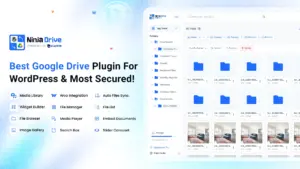



When you need to store and display media without overloading your hosting server, learning how to connect google drive to wordpress is one of the most effective solutions. High-resolution galleries, extensive PDF archives, client downloads, and video libraries can rapidly consume server disk space and drive up hosting fees. By integrating cloud storage directly into your content management system, you preserve server resources while making asset management effortless for your team.
Table of Contents
Why Connect Google Drive to WordPress in 2026?
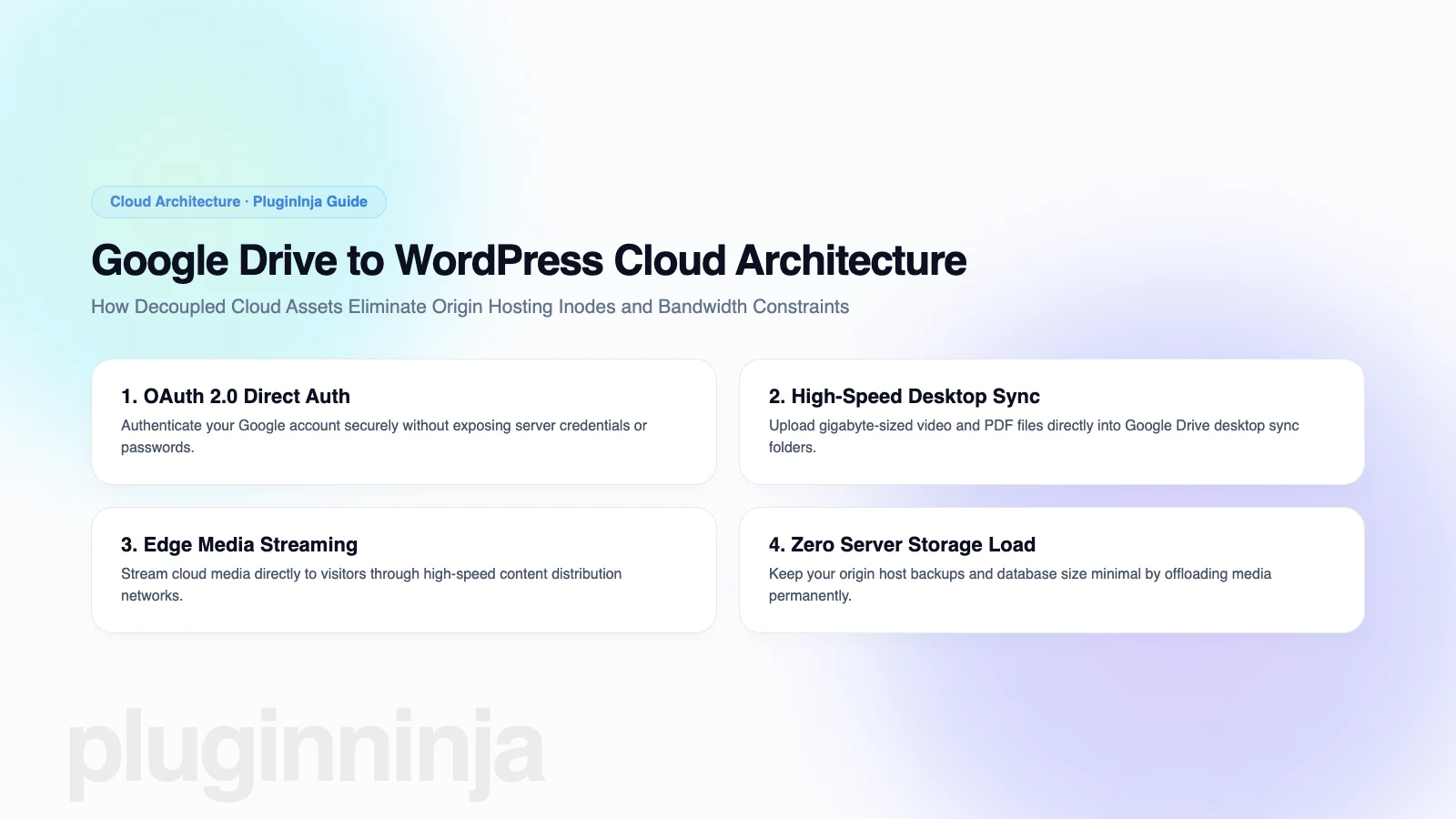
There are multiple compelling architectural advantages when you connect google drive to wordpress. First and foremost is server offloading: hosting providers often impose strict storage limits or charge heavy fees for disk expansion. Keeping bulk media files stored securely inside Google Drive frees up precious web server storage, lowers hosting expenditure, and accelerates backup procedures.
Team collaboration is another critical benefit. Editorial teams and corporate departments frequently store marketing graphics, whitepapers, and product resources inside shared company folders. When you connect google drive to wordpress, contributors can publish and update media in the cloud, allowing those assets to update automatically on the website without manual file re-uploads.
Furthermore, serving assets from Google edge data centers distributes download bandwidth away from your origin server. Rather than forcing your shared or VPS host to handle simultaneous multi-megabyte downloads, Google global infrastructure handles file delivery efficiently, preventing site slowdowns during peak visitor traffic.
Top Plugins to Integrate Cloud Storage
When evaluating tools to connect google drive to wordpress, compatibility with modern block themes and API token security should be your top priorities. Choosing the right integration tool determines how smoothly your media workflow functions. Here are the leading options for WordPress site owners in 2026:
- Ninja Drive Integration Suite: Purpose-built by PluginInja to provide lightweight, native cloud browsing, file embedding, and media offloading without unnecessary code bloat.
- Integration for Google Drive: A popular free plugin offering interactive file browsers, responsive document galleries, and direct Gutenberg block embeds.
- WP Media Folder Cloud Addon: A premium suite offering bi-directional file synchronization between your dashboard media folders and Google Drive storage accounts.
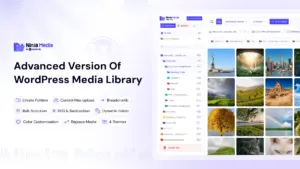
For sites seeking an intuitive interface, Ninja Drive combines clean administration with swift performance. Furthermore, pairing cloud storage with a structured folder organizer like Ninja Media creates an orderly media environment across both local and cloud directories.
How to Connect Google Drive to WordPress Step-by-Step
Connecting your cloud account to your content repository is a simple process that requires only five basic setup steps to establish seamless data communication between Google servers and your dashboard.
Step 1: Install Your Chosen Integration Plugin
From your WordPress dashboard, navigate to Plugins and select Add New. Search for your preferred cloud integration plugin or upload your downloaded zip archive, then activate the extension to register its settings panel.
Step 2: Authenticate via OAuth Credentials
Open the settings interface and initiate the Google authorization flow. Click the connect button to redirect to Google consent screen. Sign into your designated account, grant the requested read and write permissions, and confirm the authorization. Once verified, the token exchanges automatically, establishing a secure connection to your cloud repository.
Step 3: Select Display Modules and File Types
Configure which modules you want active across your site. Most integration suites provide file trees, lightbox galleries, audio players, and document viewers. Decide whether you want to embed interactive file trees or single downloadable documents for your audience.
Step 4: Embed Media via Block Editor Blocks
Open any post or page in the Gutenberg block editor. Insert the cloud integration block, choose your target folder from the visual browser, and configure display parameters like thumbnail dimensions, sorting order, and pagination options.
Step 5: Configure Access Control and Permissions
Ensure sensitive resources remain protected by setting role-based viewing permissions. You can restrict file visibility to logged-in members, subscribers, or specific client tiers to prevent unauthorized downloads.
| Integration Feature | Standard Host Storage | Google Drive Cloud Sync | Workflow Benefit |
|---|---|---|---|
| Storage Capacity | Host disk limit (5GB – 20GB) | 15GB free to scalable Terabytes | Eliminates hosting storage overage fees |
| Media Collaboration | Requires WordPress logins | Shared Google Drive folders | Team edits update without admin access |
| Download Speed | Origin server bandwidth | Google global edge infrastructure | Reduces server strain during peak traffic |
| Access Security | Basic WordPress media urls | Google IAM plus role restrictions | Granular document security controls |
Direct API Integration vs Automated Plugins
For technical teams seeking to connect google drive to wordpress through custom code, Google Cloud Console provides direct REST APIs. Developers occasionally choose to build custom API connections through Google Cloud Console rather than using pre-packaged plugins. While building custom REST endpoints offers tailored control, it requires ongoing maintenance of OAuth refresh tokens, rate limit handling, and API version deprecations. Review the official Google Drive API documentation if your enterprise requires specialized programmatic ingestion.
For the vast majority of website owners, a maintained plugin is considerably faster to deploy and more reliable over time. To learn more about core media library handling, consult the WordPress Media Library screen documentation.
Best Practices for Cloud Media Management
When you connect google drive to wordpress, organizing your folder hierarchy before establishing public links avoids broken connections later. Store public marketing assets in separate designated folders away from private internal documents to maintain clean folder structures.
Furthermore, ensure that shared Google Drive permissions are configured so viewers with the public link have read-only permissions. Regularly review connected API authorization tokens and test embedded modules across mobile screens to verify responsive playback and dependable user interaction.
Implementing structured naming conventions and nested category directories prevents asset clutter as your library expands over time. When combined with automated cloud syncing, this systematic organization makes locating customer downloads and presentation slides instantaneous.
Troubleshooting Common Cloud Integration Issues
While modern integration extensions are designed for seamless operation, occasional configuration hurdles can arise during initial deployment. When you connect google drive to wordpress on high-traffic websites, understanding how to resolve these common bottlenecks guarantees uninterrupted access to your cloud assets:
- Expired OAuth Refresh Tokens: If Google Drive embeds suddenly fail to load, your Google OAuth refresh token may have expired or been revoked. Re-authenticating via the plugin settings dashboard restores communication immediately.
- Strict Google Workspace Permissions: Enterprise Google Workspace accounts often restrict external file sharing by default. Ensure your Workspace administrator enables external link sharing for the designated media repository folder.
- Cross-Origin Resource Sharing (CORS) Blocks: When embedding PDF documents or audio streams, browser security headers may block cross-domain playback. Using plugins with native proxy streaming or standard iframe embed fallbacks avoids browser display restrictions.
For additional performance tips, hosting benchmarks, and storage tutorials, browse the latest guides on the PluginInja blog.
Final Thoughts on WordPress Cloud Storage
Learning how to connect google drive to wordpress transforms your website from a storage-constrained install into a scalable, modern media publishing hub. By taking advantage of Google robust infrastructure and smart WordPress integration, you simplify asset management, safeguard hosting resources, and empower your entire team. Take the first step today to connect google drive to wordpress and unlock a frictionless publishing workflow.
Frequently Asked Questions About Google Drive WordPress Integration
No, connecting Google Drive does not slow down page performance. When using optimized integration tools like Ninja Drive, media assets are delivered directly through Google global edge network or streamed via lightweight proxies. This offloads resource-heavy downloads from your web host and preserves server bandwidth.
Yes. Integration plugins allow you to configure interactive document lists, gallery lightboxes, and file trees with direct download buttons. You can set granular permissions to let users preview documents in an embedded viewer or download the original file format directly.
Standard Google accounts include 15GB of free storage. If your media library exceeds this capacity, you can upgrade your Google One or Google Workspace account to 100GB, 2TB, or scalable enterprise plans. This cloud expansion is significantly more cost-effective than purchasing high-tier web hosting SSD storage.
While advanced developers can create custom OAuth 2.0 client credentials in Google Cloud Console, streamlined plugins like Ninja Drive provide a simple one-click authorization flow. This allows you to securely connect your cloud storage account without manually managing API consoles.
Storing large media assets, high-resolution photography, and downloadable PDFs in Google Drive prevents your local uploads directory from ballooning. Keeping your local directory lightweight reduces daily backup sizes, shortens server backup creation times, and streamlines site migrations.


 Jakir
Jakir 

 Join Community