



WordPress 7.1 launched on August 19, 2026, and it’s packed with small, practical changes that make everyday website work easier. It doesn’t have one giant “wow” feature. Instead, it fixes a lot of little annoyances that WordPress users have dealt with for years.
This release is nicknamed “Mary Lou” and builds on WordPress 7.0 by focusing on three areas: how you collaborate, how you style your site, and how you manage media.
Let’s walk through What’s New in WordPress 7.1 — in plain, simple language, no tech jargon.
Before you update: Always backup your website first. Updating without a backup is like driving without a seatbelt — you probably won’t need it, but you’ll be glad it’s there if something goes wrong.
So let’s see What’s New in WordPress 7.1
1. Notes Just Got a Lot More Useful
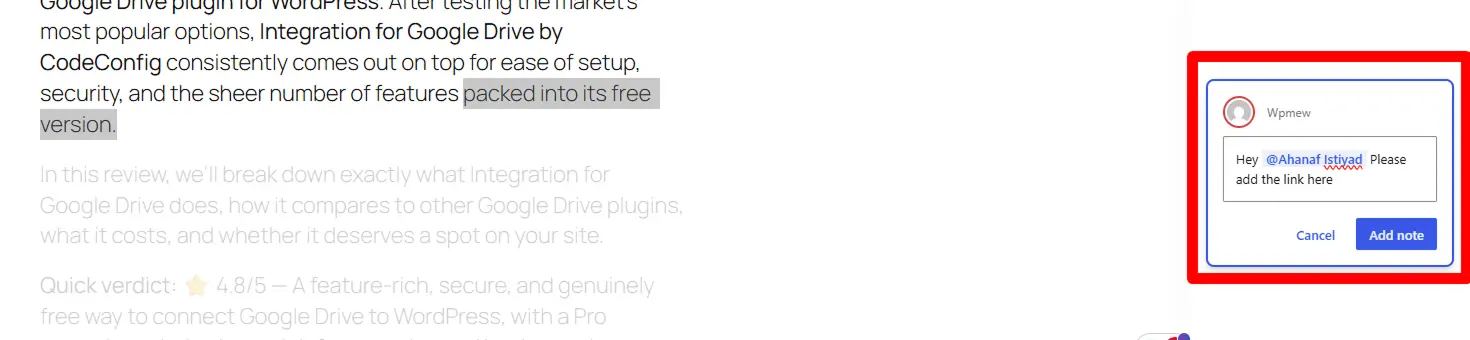
Notes let you leave comments on parts of your content while editing — handy for teams. WordPress 7.1 makes this feature feel like a real collaboration tool.
Here’s what changed:
- @mentions – Type “@” in a note and tag a teammate directly. WordPress will even send them an email so they don’t have to keep the editor open.
- Notes on exact text – You can now leave a note on one sentence instead of a whole block. The exact words stay highlighted so nobody has to guess what you meant.
- Multiple conversations – You can start more than one discussion thread on the same block.
- Text formatting – Notes now support bold, italic, links, code, and emoji.
- Notes stay private – They no longer show up mixed in with your public comments.
Why it matters: If you run a blog with multiple writers or editors, this turns WordPress into a lightweight version of Google Docs-style feedback — right inside your dashboard.
2. Share a Link to Any Past Version of Your Content
WordPress already lets you see older versions of a post (called revisions). Now, you can copy a link to one specific version and send it to someone.
Open any post’s revision history, pick the version you want, and copy the link straight from your browser. Anyone who opens it lands on that exact revision, with the changes highlighted.
This is great for showing a client or teammate exactly what changed, without them digging through the whole history themselves.
3. Style Your Site for Mobile — No Code Needed
This is the feature most people are excited about, and for good reason.
Until now, if you wanted a heading to look smaller on phones, you needed custom CSS. WordPress 7.1 changes that.
Here’s how it works:
- Click the device preview icon in the top toolbar.
- Turn on Responsive styles.
- Switch to Tablet or Mobile view.
- Change the style — size, spacing, color, whatever you need.
Your changes apply only to that screen size. Your desktop design stays exactly as it was. You can even drag the editor canvas to any width and watch your content adjust in real time.
In simple words: you can finally make your site look right on phones and tablets, directly inside the editor, without touching a single line of code.
4. Design Hover and Focus Effects for Buttons
Ever wanted a button to change color when someone hovers over it? Before 7.1, that meant custom CSS too.
Now there’s a “State” option in the editor. Pick “Hover,” “Focus,” or “Active,” choose a different color or style, and preview it live — all without code.
5. Two Brand-New Blocks
Tabs Block
Organize content into clickable tabs instead of one long page. Great for FAQs, product details, or comparing plans. It’s also built to work properly with keyboards and screen readers.
Playlist Block
Add a set of audio files to a page, complete with artwork and a waveform preview. Perfect for podcasters, musicians, and churches who want to share audio without installing a plugin.
6. A Better Image Editor
WordPress 7.1 replaces the old, cramped image-cropping tool with a full editing window. You get:
- Freeform cropping and ready-made aspect ratios
- Flip and rotate controls
- Metadata editing
- A zoomed-in view for precise crops
It also works with background images, so you can edit a Cover block’s photo right where you use it.
7. Smarter, More Reliable Media Uploads
WordPress can now handle more image formats without extra plugins, including:
- HEIC (the format iPhones use by default)
- AVIF
- WebP
- UltraHDR
If your internet drops mid-upload, WordPress now pauses the upload and picks it back up automatically once you’re reconnected — instead of failing and making you start over.
A few other small but handy media upgrades:
- Smarter galleries that automatically pull in images already attached to your post
- A new “Attached Images” section, so you don’t have to hunt through your whole media library
- Infinite scrolling in the Media Library, so you don’t have to click “Load More” over and over
8. The Admin Toolbar Now Stays With You
Previously, the top toolbar would disappear once you opened the editor. Now it stays visible everywhere, so you always know where you are and can jump back to the dashboard easily.
The toolbar also got a visual refresh:
- A clearer back button
- Your site’s actual icon instead of a generic logo
- A round profile picture instead of a square one
(Yes, the “Howdy” greeting is still there. Some things never change.)
9. Small Admin Improvements That Add Up
- Command Palette (Ctrl+K / Cmd+K) now sorts results into Recent, Matching, and Suggestions.
- The Site Editor now matches your chosen admin color scheme.
- Site title, logo, and icon settings moved into one place: Design → Identity.
- The Posts list now shows a short excerpt for each post.
- You can select multiple items at once using Shift-click in list views.
- You can now fix a misplaced comment reply by changing which comment it’s replying to.
10. Other Block Improvements Worth Knowing
- Background gradients and background images can now be used together.
- Text shadows can be set through Global Styles.
- The Icon block can flip, rotate, and pick from organized icon collections.
- A new toggle lets you mark images as decorative, so screen readers skip over ones that don’t need a description — a nice accessibility win.
- The Query Loop block can now exclude the post someone is currently reading, so your “related posts” section doesn’t recommend the same article.
What Didn’t Make the Cut
Not everything planned for 7.1 shipped. A few things were held back:
- Real-time, Google Docs-style co-editing — still being tested for stability.
- The “On This Day” dashboard widget — needs more polish before it returns.
- Removing the Classic block from the inserter — reversed after community feedback, so it’s staying put.
Things to Check Before You Update
For most sites, updating is simple and safe. But if you run a larger site with older plugins, keep these in mind:
- The editor now always loads inside an iframe. This makes editing more stable, but very old plugins that inject custom scripts into the editor may need an update.
- jQuery UI was updated to a newer version, which some older plugins (like date pickers) rely on. Test on a staging site first if you’re not sure.
- Multisite storage limits are now enforced everywhere, including when media is imported from a URL.
As always: back up first, test on staging if you can, and update plugins before updating WordPress itself.
Frequently Asked Questions
When was WordPress 7.1 released? WordPress 7.1 launched on August 19, 2026, timed with WordCamp US.
Is WordPress 7.1 a big update? Not in terms of one flashy feature — it’s more of a “polish” release. But the responsive styling and upgraded Notes feature genuinely change how you build and collaborate day to day.
Will WordPress 7.1 break my site? For most sites, no. If you run an older theme or plugins that haven’t been updated in years, test on a staging site first because of the iframe and jQuery UI changes.
Is the Classic block being removed? No. WordPress reversed that plan after feedback from the community.
Do I need coding skills to use the new responsive styling? No. It’s built entirely into the editor — no CSS required.
Final Thoughts
WordPress 7.1 isn’t trying to reinvent anything. It’s fixing the small stuff that’s bothered users for a long time — clunky mobile styling, hard-to-track feedback, awkward image uploads. None of these changes are flashy on their own, but together, they make working in WordPress noticeably smoother.
If you haven’t updated yet, back up your site, then spend a few minutes exploring Notes, responsive styling, and the new image editor. They’re easy to miss, but they’re genuinely worth using.

 Ahanaf Istiyad
 plugininja

 Join Community