



Want to sell Google Drive Files on WooCommerce instead of your web host? It’s one of the easiest ways to speed up your store and cut hosting costs. Below is a straightforward Q&A walkthrough for connecting Google Drive to WooCommerce using Ninja Drive, so you can start selling eBooks, courses, templates, software, or anything the same day.
Why sell Google Drive files on WooCommerce?
Q: Why not just upload digital files directly to my WordPress server?
A: Large files — video courses, HD audio packs, big software bundles — slow down backups, eat storage, and can hit server upload limits. Keeping the master files in Google Drive and letting WooCommerce handle checkout gives you the best of both: familiar WooCommerce checkout and cart flow, and Google’s storage and bandwidth doing the heavy lifting behind the scenes.
Q: Is this legal and safe for paid downloads?
A: Yes. Ninja Drive doesn’t make your Drive files public. It generates secure, permission-gated links that only unlock after WooCommerce confirms a completed order, so the file behaves exactly like a normal downloadable product.
What do I need before I start?
- A WordPress site running WooCommerce
- The Ninja Drive plugin installed and activated
- A Google account with the files you want to sell already uploaded to Drive
How do I install Ninja Drive?
- In your WordPress dashboard, go to Plugins → Add New → and search Ninja Drive by Plugininja.
- Click the Install Now button and then click Activate.
- That’s it, then connect your Google Drive account.
Tip: Always connect using your own Google Cloud Console project. It gives you control over API quotas and permissions, and it protects your store from disruptions that shared, third-party credentials can cause.
How do I Integrate Ninja Drive to WooCommerce?
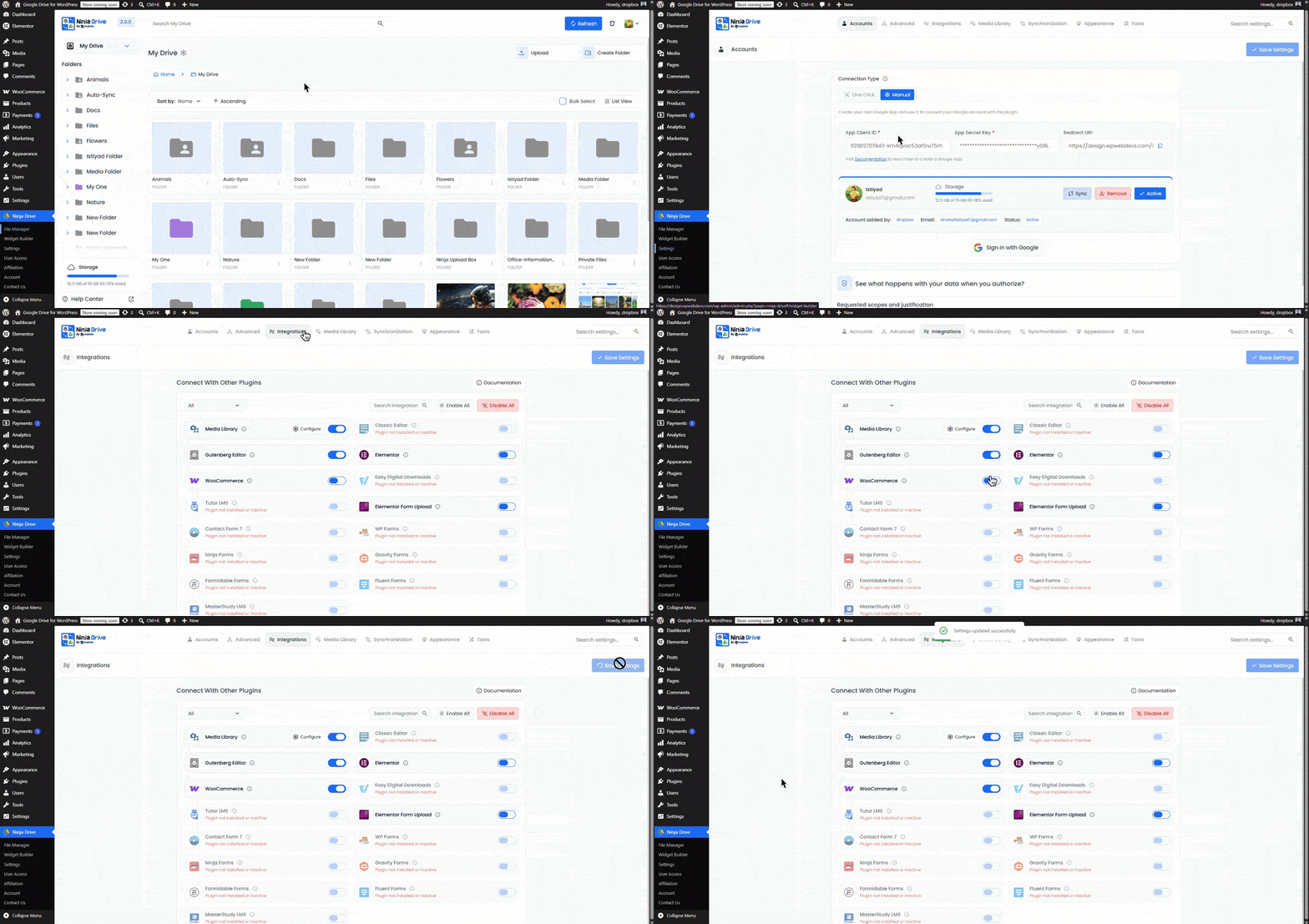
- Open Ninja Drive → Settings.
- Click the Integrations tab.
- Toggle WooCommerce on.
- Click Save Settings.
Once saved, your Drive account is available inside WooCommerce’s product editor.
How do I attach a Drive file to a WooCommerce product?
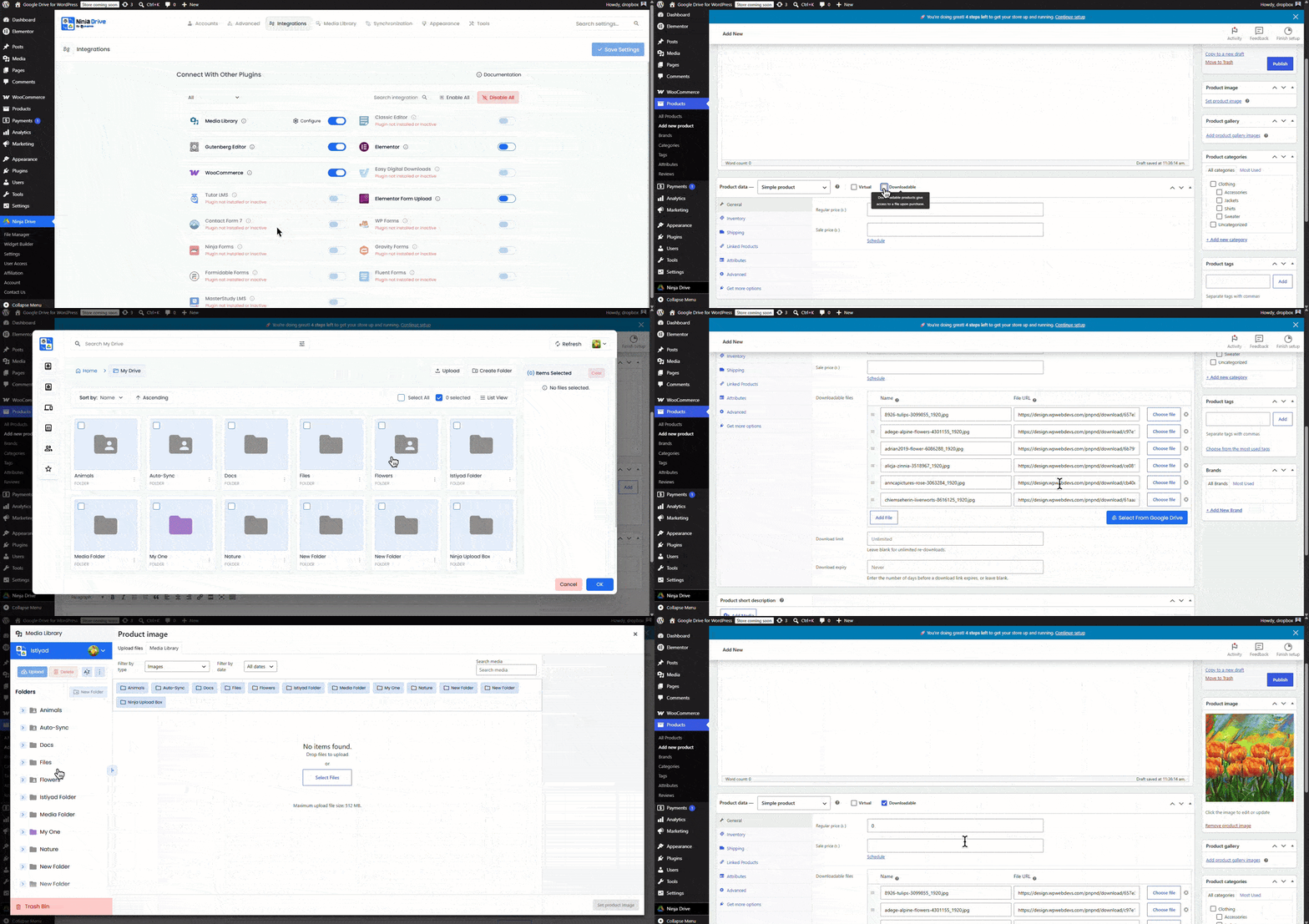
- Go to Products → Add New (or edit an existing product).
- In the product data box, check Downloadable.
- Click Select from Google Drive → Choose File, select the file from Google Drive, and confirm.
- Set your price, write a description, fill in the remaining product details, and Publish.
Your product is now live, backed by a file that never touches your server’s storage.
What are some best practices for selling Drive files?
- Use Drive for anything large. eBooks are fine on-server, but video courses, sample packs, and installers belong on Drive to keep your site fast.
- Organize folders before you connect them. A clean, purpose-built folder structure in Drive makes the Media Library picker much easier to use as your catalog grows.
- Review sharing permissions periodically. Even though Ninja Drive gates access through WooCommerce orders, it’s good hygiene to check your Drive sharing settings every so often.
- Bundle related files into one product. WooCommerce lets you attach multiple Drive files to a single downloadable product, so a customer gets everything in one purchase.
Frequently Asked Questions
Can I sell any type of file this way? Yes — eBooks, software, video, audio, templates, or any file WooCommerce’s downloadable product type supports.
Do I need a separate plugin, or can WooCommerce connect to Drive on its own? You need a connector plugin like Ninja Drive. WooCommerce doesn’t talk to Google Drive natively.
Will this slow my site down? No — the opposite. Offloading large files to Drive reduces server load and keeps page speed and hosting costs down.
Can one product include several Drive files? Yes, WooCommerce supports attaching multiple downloadable files to a single product.
How are files protected from unauthorized downloads? Ninja Drive issues secure links that only activate for customers with a completed order, so files aren’t publicly accessible.
Do I need my own Google Cloud project? It’s recommended. Using your own app keeps you in control of API limits and avoids interruptions tied to shared credentials.
Ready to try it? Get Ninja Drive and connect your first Google Drive file to WooCommerce today.
Want to sell Google Drive Files on WooCommerce instead of your web host? It’s one of the easiest ways to speed up your store and cut hosting costs. Below is a straightforward Q&A walkthrough for connecting Google Drive to WooCommerce using Ninja Drive, so you can start selling eBooks, courses, templates, software, or anything the same day.

 Jakir
Jakir 
 Ahanaf Istiyad

 Join Community